Miscellaneous
This chapter contains frequently asked questions and adapter-specific configuration details for configuration storage types and data access types.
Frequently asked questions (FAQ)
Frequently asked questions about itemis ANALYZE.
Licensing and download
Who can benefit from itemis ANALYZE?
itemis ANALYZE supports everyone who needs to ensure traceability over the toolchain. It supports all user groups in performing their tasks in the context of traceability.
- Your task is to create and manage trace links? itemis ANALYZE gives you the means to create links manually as well as automatically derive them from artifact data, based on an individual scheme. If artifact data or link data change, itemis ANALYZE helps you ensure that links are still valid.
- Managers will welcome itemis ANALYZEs rich dashboard and reporting functionalities, providing them with an overview on the current project and its traceability status, e.g. the current coverage of requirements by successful test cases. itemis ANALYZE query language is a powerful tool to formulate even very complex project-specific questions, to be answered once or on a regular basis.
- If you are a system administrator, itemis ANALYZE supports you in setting up configurations in such a way that your fellow employees can access their proper data easily.
What is itemis ANALYZE Quickstart edition for?
The driver for the Quickstart edition is to quickly create meaningful traceability analysis. If you are in the situation, for example, that you maintain your Requirements Traceability Matrix \by hand\ (e.g. in Excel), you know how error-prone this can be. The Quickstart Edition does exactly this work for you - and you can define even more meaningful analyses with it.
To make sure that this is done quickly, we help you with this - that's why a free day of consulting is included.
With the Quickstart Edition you can evaluate data from Word, Excel and C/C++. If you want to connect even more tools, you might want to consider the Professional Edition.
Please contact us if you have any further questions.
How can I get a demo version?
itemis ANALYZE is highly configurable to integrate with the toolchain you are using. Therefore, we provide two demo/evaluation options:
- Self-guided evaluation: This evaluation offer comprises a demo version supporting a fixed set of adapters. It comes with a populated workspace representing a “small V-model” which consists of stakeholder requirements and software requirements, specified in Microsoft Word documents, test specifications in Microsoft Excel, a Matlab Simulink design, and some C source code. In order to illustrate the analysis capabilities of itemis ANALYZE, sample traceability queries and reports are already set up for you. You may want to look at the included videos to learn more about the features of itemis ANALYZE.
- Guided evaluation: We are also offering to set up itemis ANALYZE together with you and suited for your specific needs. We will configure itemis ANALYZE according to your use cases and demonstrate how it can really chain your tools. Working closely together, we will provide customized solutions for your particular problems. As a side effect, the knowledge transfer happens en passant. Feel free to contact us any time to ask about the details of this offer.
In either case, the evaluation period is not limited strictly – we always suggest to choose your weapons carefully.
What does itemis ANALYZE cost?
itemis ANALYZE consists of core functionalities plus different adapters allowing you to connect to the tools in your toolchain. By way of these adapters you can access data from these tools and create trace links between them. The costs for itemis ANALYZE largely depend on the adapters you need. Please contact us to give us information about your toolchain, and we will be glad to give you an overview on the costs.
Setting up itemis ANALYZE
How and where does itemis ANALYZE save the link information?
This is highly configurable and to a large degree depends on your toolchain processes and preferences. You can either store links in itemis ANALYZE’s own link storage file format, leaving your artifacts unaffected. Alternatively, you can maintain the links invasively within the artifacts. For example, you could save link information as cells in an Excel sheet or as comments in a Java source file. What is possible and how it works in detail differs from tool to tool. Non-invasive and invasive approaches both have there specific advantages. You can even mix both approaches.
The documents itemis ANALYZE analyzes need to be in a “workspace”. What is a “workspace”, and how can I add documents to it?
Technically, itemis ANALYZE rests upon the Eclipse platform, and the latter provides a very flexible resource management. The workspace bundles the data you are working with in a single place, no matter whether they reside physically. The spectrum of functions comprises implicit or explicit copies, symbolic links for files and folders, and more (Help ).
Can I instruct itemis ANALYZE to automatically refresh link information after document changes, e.g. after editing an Excel file containing test case specifications?
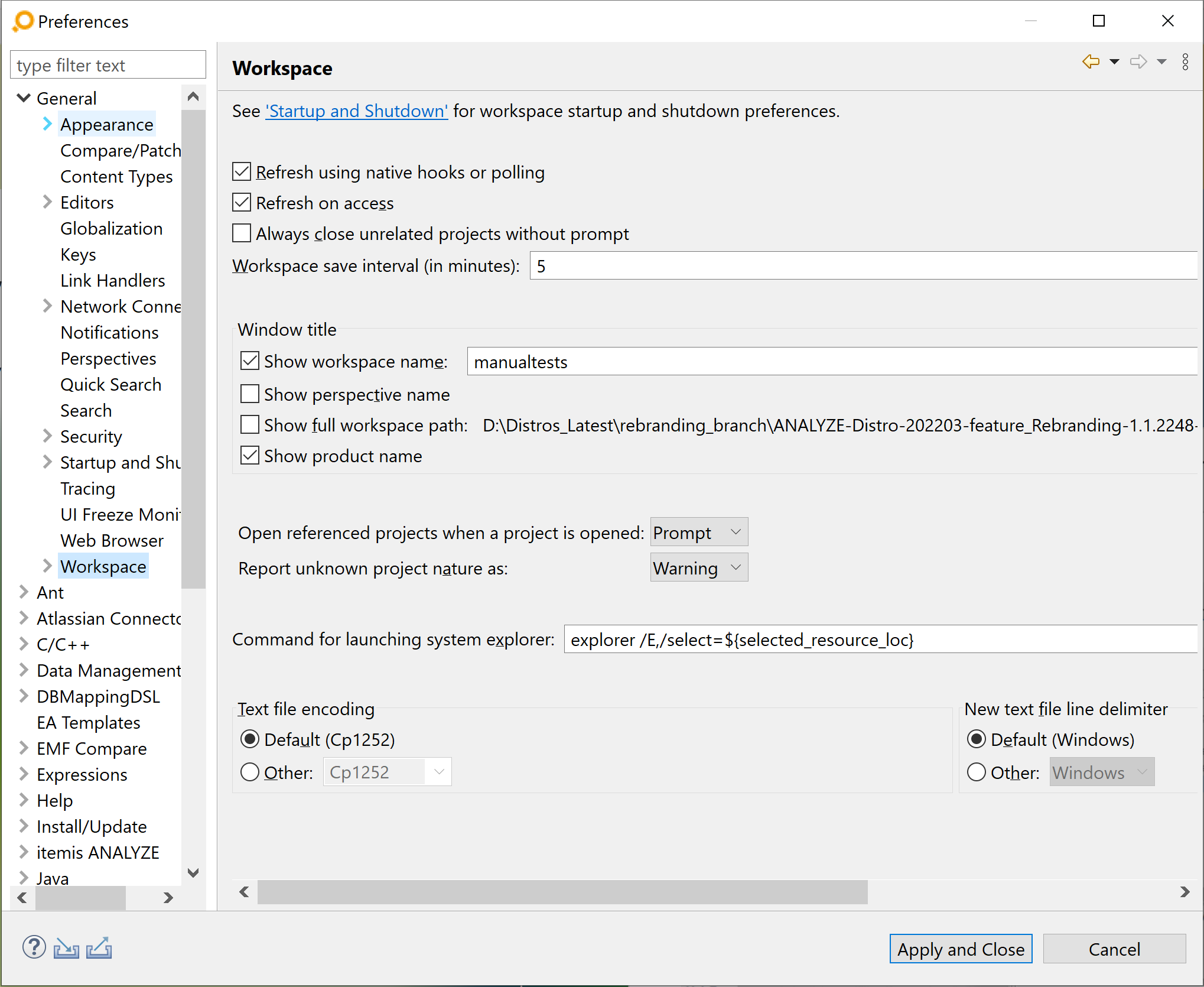
Yes, you can control the refresh behaviour by means of the preference settings. If you check “Refresh using native hooks or polling” in the general workspace preferences, ANALYZE refreshes automatically after changes.
Is it possible to address different baselines in IBM DOORS?
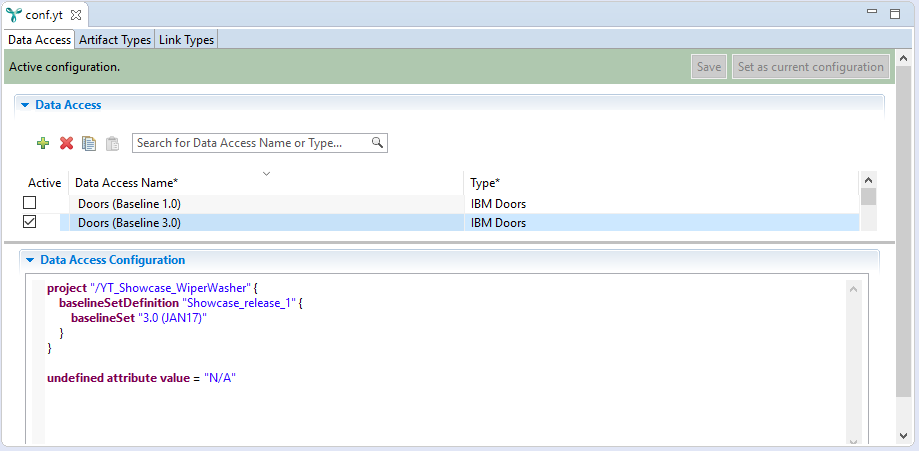
Yes. The IBM DOORS adapter can be configured in a way to consider only artifacts and links that are present in a certain baseline. You can find more about this feature in the ANALYZE documentation.
Linking artifacts
Which tool can be connected with itemis ANALYZE?
itemis ANALYZE has a large number of tool adapters. In addition, with our generic adapters for XML or Text we can analyze data from all tools that support these formats.
I cannot find any unlinked artifacts in the ANALYZE Explorer view. Why are they not shown?
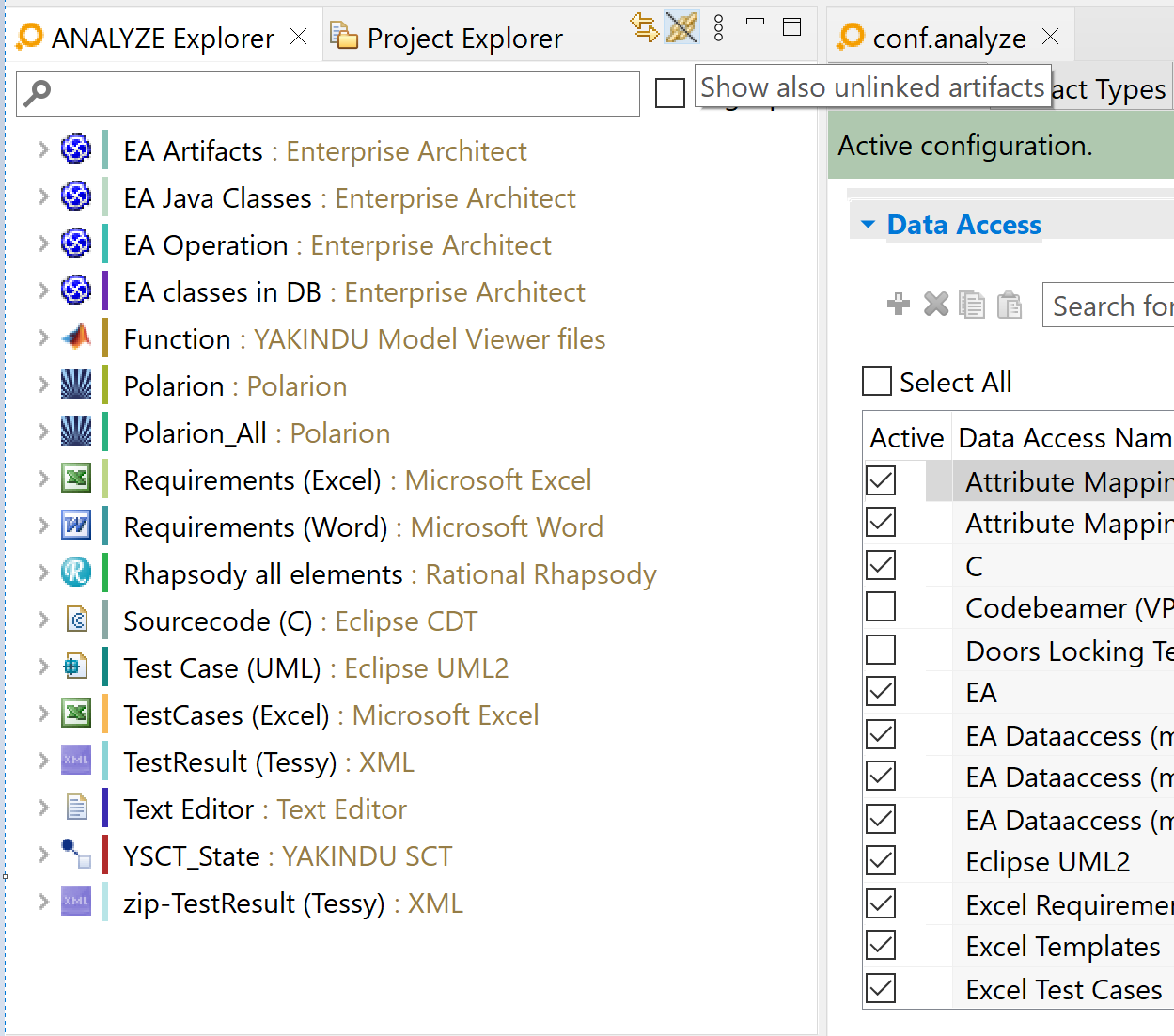
Per default, the ANALYZE Explorer view displays linked artifacts only. However, there is an easy means to also show unlinked artifacts: In the toolbar of the ANALYZE Explorer view, click on the “Show also unlinked artifacts” button. ANALYZE Explorer will now present linked as well as unlinked artifacts. You can identify unlinked artifacts in the tree by the icon in front of the artifact name: It’s adapter icon is decorated with the icon used in the toolbar.
The ANALYZE Explorer view only shows linked artifacts … but how can I see all links of a given type?
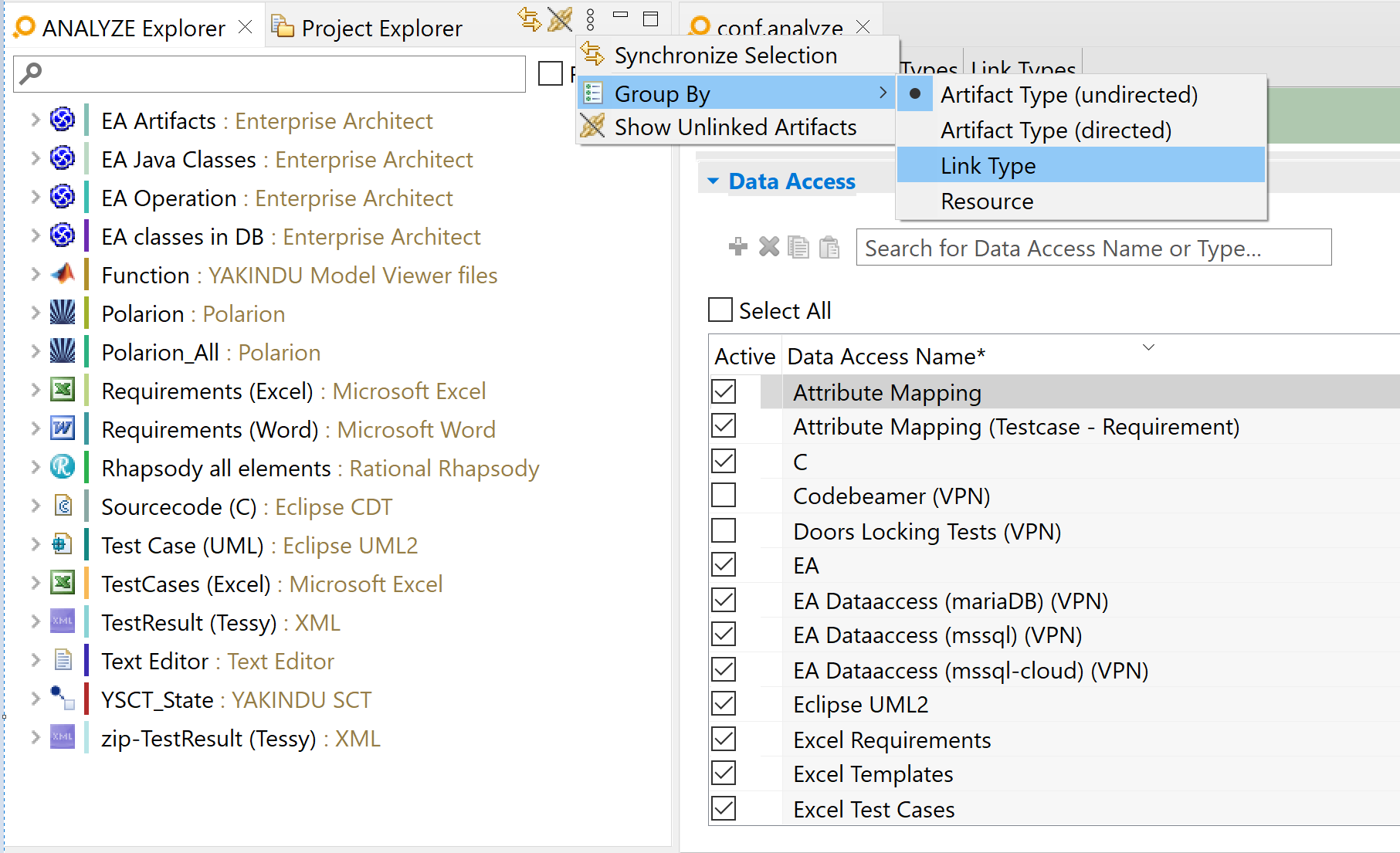
ANALYZE Explorer shows its content in groups. You can choose from four different grouping rules, which are explained in detail in section Show links based on different groupings in the ANALYZE documentation. Select the link type grouping to order the artifacts based on their link types.
Does itemis ANALYZE support forward, backward, or bidirectional traceability?
Yes, itemis ANALYZE supports directed as well as bidirectional traceability. In the ANALYZE configuration, you can define which type of artifact can be linked with which other type – the direction is not important here. However, ANALYZE Overview provides a toggle button that allows you to analyze traceability either bidirectionally or undirectionally.
Project status and reports
Is it possible to track project progress with itemis ANALYZE?
itemis ANALYZE provides different means to analyse the current status of your project. For example, the ANALYZE Dashboard view displays pie charts with all artifacts, linked artifacts or unlinked artifacts.
To support some deeper analysis, itemis ANALYZE comes with an easy-to-use query language for the creation of all kinds of custom metrics. We provide various query templates to support you in writing your own queries.
Also, you can generate custom reports answering your individual, project-specific questions and export the results, for example in Excel.
Find out more about how to analyse the traceability status of your project in the ANALYZE documentation.
I need nightly/weekly reports. Can I run itemis ANALYZE on a server?
Yes, this is possible. itemis ANALYZE can run on continuous integration servers, such as Jenkins, Travis, etc. This allows to execute queries and export the results or to create individual reports in a regular manner. It is also possible to write the results into a database.
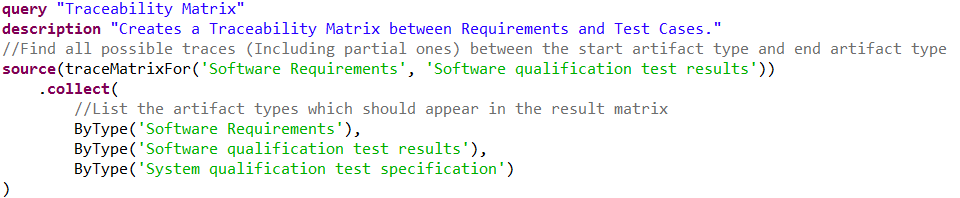
How do I create a traceability matrix?
You can create a traceability matrix by use of itemis ANALYZE’s query language. Navigate to the ANALYZE Queries view, e.g. in the Analysis perspective, and open a query file. In that file, please add the following query and replace the green-colored artifact type names by names of your own configuration. Tip: While editing the query file, press [Ctrl+Space] to be supported by code completion proposals and template suggestions. To create a traceability matrix, you can use the query template “Trace Matrix”.
Save the query file and execute the created query in the ANALYZE Queries view. The traceability matrix will be shown in the ANALYZE Query Results view.
How can I find out which requirements are not yet linked?
itemis ANALYZE provides different means to identify unlinked artifacts, like requirements. One way is to activate the switch "Show also unlinked artifacts" in the ANALYZE Explorer view and navigate to the artifact type configured for your requirements. Alternatively, you can use the ANALYZE Dashboard view that can be found in the Analysis perspective. In the dropdown field, select "Not linked artifacts". Afterwards, click on the pie section of the type you are interested in. ANALYZE Dashboard Details will show you a list with all unlinked artifacts of this type.
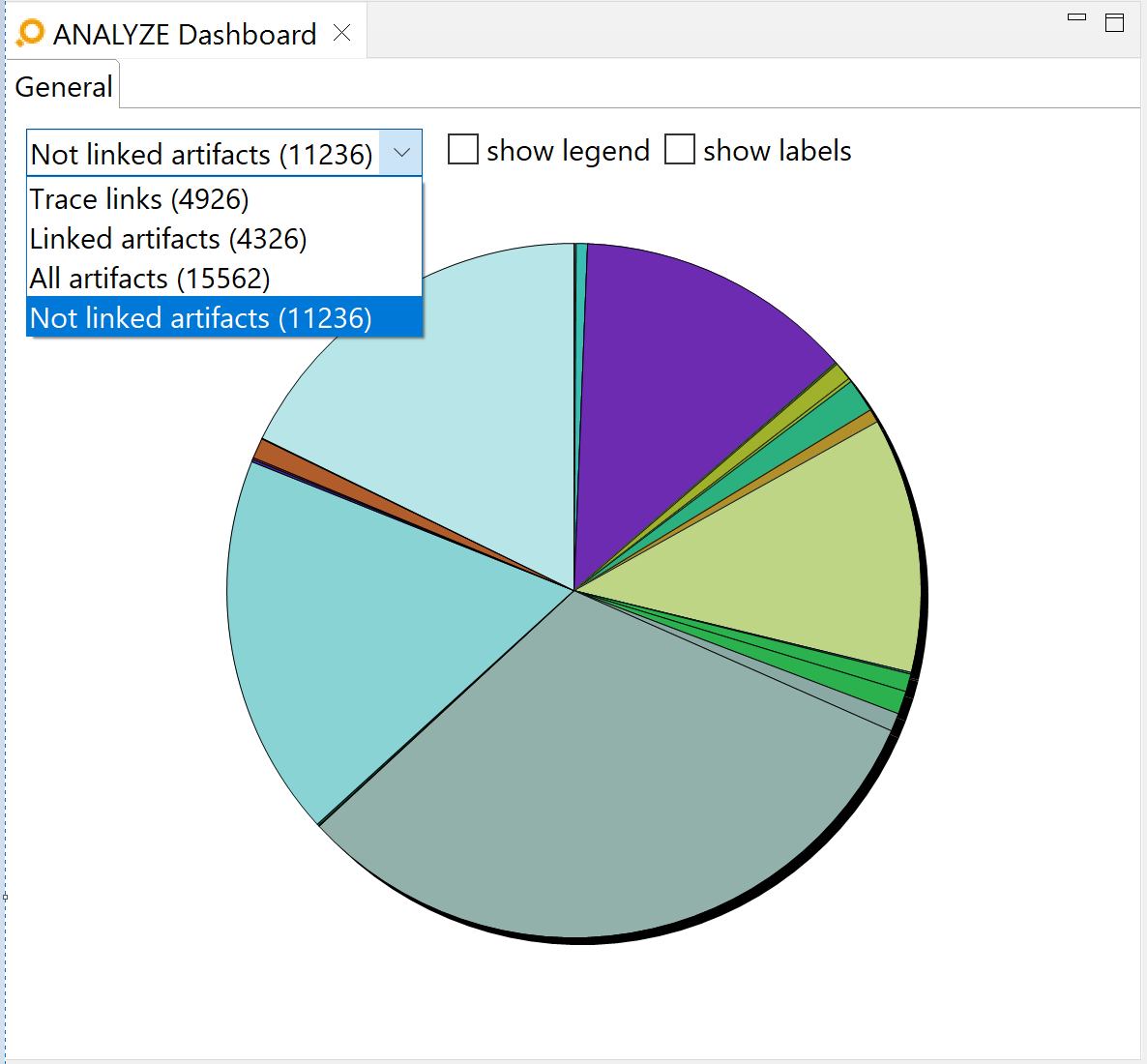
You can also use the query language to answer this question. Navigate to the ANALYZE Queries view, e.g. in the Analysis perspective, and open a query file. In that file, please add the following query and replace the green-colored artifact type names by names of your own configuration. Tip: While editing the query file, press [Ctrl+Space] to be supported by code completion proposals and template suggestions. To identify unlinked artifacts, you can use the "All unlinked artifacts for" query template.
Save the query file and execute the created query in the ANALYZE Queries view. The unlinked artifacts will be shown in the ANALYZE Query Results view.

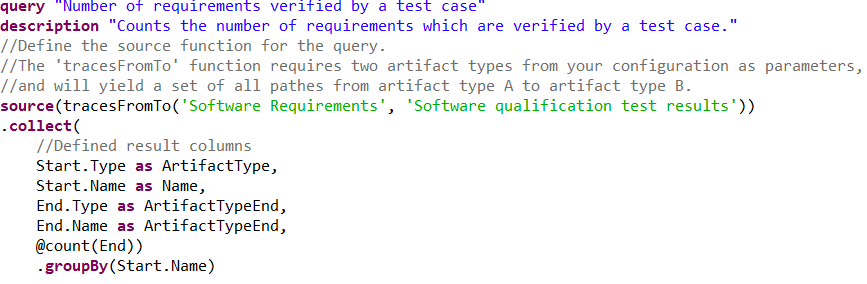
For all test cases, I want to know the exact number of requirements that are verified by each test case. How can itemis ANALYZE help me with analyzing my traceability data?
itemis ANALYZE’s query language includes a function to count elements. You can set up a query that first collects all traces from one artifact type to another artifact type and then use the @count function at the end of your query. The following example would result in a list of “Software Requirements” linked with “Software qualification test results”. The last column of that list contains the number of “Software qualification test results” linked to the corresponding “Software Requirement”.
My process mandates that all artifacts of type A are linked to artifacts of type B. I automatically derive the links using attribute mapping. Now I want to know which artifacts have no links. How can itemis ANALYZE help me identify gaps in my traceability?
This is a typical use case for the query language. The example below shows how to find all “Software Requirements” that have the attribute “Needs test” set to true and are not linked to a respective “Software qualification test specification”.

Others
My project has strict traceability requirements as defined in a specific ISO norm, e.g. ISO 26262, Automotive Spice, DOA178, EN 50128, etc. Can itemis ANALYZE help me comply to these process standards?
Our idea is to adjust itemis ANALYZE to your process and not to adjust your process to our tool. Therefore it is highly configurable and expandable, e.g. to support new tools. This gives you the perfect basis to comply with your process standards. Furthermore, we have a lot of experience in introducing traceability in companies that need to comply with process standards. So we can also provide you with professional consulting services in setting up the necessary traceability level in your company, based on our experience in this domain.
Adapter configuration keywords and options
Configurations can be made in the configuration editor or on the preferences page.
Keywords
- == – "Equals" operator to use within a condition
- != – "Not equals" operator to use within a condition
- addressOf – Starts an addressOf condition.
- baselineSetDefinition – Defines the "Baseline Set Definition" that is to be loaded.
- baselineSet – Defines the "Baseline Set" that is to be loaded.
- contains – Constraint for substring check
- if – Third keyword of an include expression. Starts a block of conditions.
- if ( … ) { … } else { … } – Conditional expression to map attributes based on constraints
- in – "In" operator to use within a condition
- include – Starts an include expression. Artifacts satisfying the expression right from the include keyword will be included in the result set.
- map – Starts a mapping block.
- Module – Allows to access the parent module of an object for mapping.
- modules – Second keyword of an include expression. Defines that the following conditions are evaluated on module level.
- objects – Second keyword of an include expression. Defines that the following conditions are evaluated on object level.
- project – Defines which project is to be imported.
- Project – Allows to access the parent project of an object for mapping.
- resource – A pattern for a project, folder or file in the workspace.
- split( … , … ) – Inside an in condition this can split the first parameter at every occurrence of the second parameter and be used as many separate values.
- switch ( … ) { case*…:* … default: … } – Conditional expression to map attribute values based on predefined values of another available string for mapping.
- to – Defines the relation of a custom attribute to the value it is mapped to.
- valueOf – Starts a valueOf condition.
- server – Defines the server to be used.
- port – Defines the port to be used.
- file – Defines the file to be used for storing.
Options
- cell – Optional regular expressions for content or address of a cell
- element matches – XPath expression for the selection of artifacts
- identified by – Unique key for an artifact in this document.
- column with header – Defines within a valueOf expression in a configuration of the Excel adapter that the value is contained in a column with a certain column header provided right from the keyword.
- locate bookmark where subset – Bookmark recognition(s). This can be used to filter valid bookmarks by defining a regular expression on the full label format, see detailed explanation below.
- locate text where pattern – Regular expression recognition(s)
- map – Attribute mappings for custom attributes
- map to type – ReqIF type long name filter
- name – Name for the matched artifact
- resource – File filter pattern
- sheet – Regular expression for the workbook sheet name
- subset metaclass – Filter elements by meta class
- subset namespace – Filter elements by namespace
- subset stereotype – Stereotype filter
- type – ReqIF specification type long name filter
Configurations
- … as block|line comment – Specifies whether ANALYZE creates block or line comments for new links.
- analyze comments of … – Which artifact type represents the C artifact. Possible Values are A and B.
- create links by … – Specifies how ANALYZE calculates the content of new comments on link creation. The specification is a concatenation of static strings and values of artifact attributes.
- in – "In" operator to use within a condition
- locate links by – A regular expression for the text portion in the comment of the C files representing a link.
- map { … } – As an option, it is possible to define link attributes and derive the attribute values similar to the identifier derivation specified by identified by.
- separatedby – As an option, it is possible to define a separator, that separates identifiers in a list, e.g., requirement ids that can be linked with ids in one cell of an Excel document.
- where – Specifies the relevant attributes for the identification of an artifact linked to a C element.
Database-Access-Proxy Server
The Database-Access-Proxy server is a Spring Boot based web server that redirects SQL select queries to a relational database such as DB2 used by DOORS Next or PostgreSQL used by Polarion. The advantage of using the Database-Access-Proxy server is, that the itemis ANALYZE user does not need to know the credentials for the database. Instead, the Database-Access-Proxy server can offer the SQL query results to anyone, or only to users who are authorized by a DOORS Next/Polarion web server. If the user is authorized, then responses to received SQL queries are filtered according to the projects the DOORS Next/Polarion user has access to by the Database-Access-Proxy server. The Database-Access-Proxy server does the filtering, by appending additional where clauses to received SQL queries before passing them to the relational database.
Configuring the Database-Access-Proxy Server
The Database-Access-Proxy server is configured by a yml configuration file stored in the folder that contains the executable JAR archive of the Database-Access-Proxy server.
The following example configuration is stored in a file called itemis.yml:
spring:
  datasource:
    db2:
      url: jdbc:db2://db2.itemis.de:25000/JTS
      driver-class-name: com.ibm.db2.jcc.DB2Driver
      username: TheDB2User
      password: TheDB2Password
      maximum-pool-size: 10
    postgresql:
      url: jdbc:postgresql://polarion.itemis.de:5433/polarion
      driver-class-name: org.postgresql.Driver
      username: ThePostgreSQLUser
      password: ThePostgreSQLPassword
      maximum-pool-size: 10
api:
  dng_timeout: 5s
  endpoints:
    - path: /sql
      datasource: db2
      authentication_type: none
    - path: /dng
      datasource: db2
      authentication_type: DNG
      authentication_server: https://db2.itemis.de:9443
    - path: /polarion
      datasource: postgresql
      authentication_type: Polarion
      authentication_server: https://polarion.itemis.de/polarion
Below spring.datasource, several connections to relational databases can be configured. In the example above, only two connections called db2 and postgresql are configured. Each relational database connection has the following properties:
url: The JDBC URL to the relational database. The format of the URL depends on the used JDBC driver.driver-class-name: The JDBC driver class name.username: The user name to login on the relational database.password: The password to login on the relational database.maximum-pool-size: The maximal number of JDBC connections in the pool which is also the maximal number of concurrent HTTP sessions for that database that the Database-Access-Proxy server can handle.
Below api.endpoints several paths on the Database-Access-Proxy server can be configured. Each path accepts SQL select queries via HTTP get and post requests and provides results in JSON. For each path, the following properties must be configured:
path: The path on the HTTP server.datasource: The relational database to use as reference to a connection configured atspring.datasource.authentication_type: Eithernoneto accept any requests, orDNGto require HTTP basic authentication against a DOORS Next server, orPolarionto require HTTP basic authentication against a Polarion server. In case ofDNGandPolarion, the responses are filtered according to the projects the DOORS Next/Polarion user has access to.authentication_server: The URL to the DOORS Next/Polarion server to use for authentication. The authentication requires that the user has the needed privileges to use the REST API of the DOORS Next/Polarion server.
The configuration api.dng_timeout specifies the timeout for requests to a DOORS Next server. If the timeout exceeds, HTTP basic authentication of incoming HTTP requests fails.
Notice that configurations can be overwritten or provided alternatively via command line arguments. E.g. the following command line arguments can be used to provide user name and password for the configured db2 and postgresql connections in the example above:
-Dspring.datasource.db2.username=TheDB2User
-Dspring.datasource.db2.password=TheDB2Password
-Dspring.datasource.postgresql.username=ThePostgreSQLUser
-Dspring.datasource.postgresql.password=ThePostgreSQLPassword
Launching the Database-Access-Proxy Server
The Database-Access-Proxy server is an executable JAR file that can be launched using Java 21 or newer.
java -Dloader.path=PathToJcc-12.1.3.0.jar -Dspring.datasource.db2.username=TheDB2User -Dspring.datasource.db2.password=TheDB2Password -Dspring.datasource.postgresql.username=ThePostgreSQLUser
-Dspring.datasource.postgresql.password=ThePostgreSQLPassword -jar server-0.0.1.jar --spring.config.name=itemis --server.port=8080
The argument PathToJcc-12.1.3.0.jar is the path to the file jcc-12.1.3.0.jar with the DB2 JDBC driver which can be downloaded from mvnrepository.com .
The arguments -Dspring.datasource.db2.username=TheDB2User, -Dspring.datasource.db2.password=TheDB2Password, -Dspring.datasource.postgresql.username=ThePostgreSQLUser, and -Dspring.datasource.postgresql.password=ThePostgreSQLPassword are optional. Also other configurations can be overwritten/specified in this way.
The name of the configuration to use is specified by argument --spring.config.name.
If the configuration is not contained in the working directory, then the path to the folder that contains the configuration file must be provided as URI by argument --spring.config.location. E.g.
--spring.config.location="file:/C:/database-access-proxy-server/.
The argument --server.port specifies the port at which the Database-Access-Proxy server will listen for incoming HTTP get and post requests.