Members
Members in the organization sidebar opens the members page. It lists everyone who belongs to the organization, and everyone who has been invited but has not joined yet.
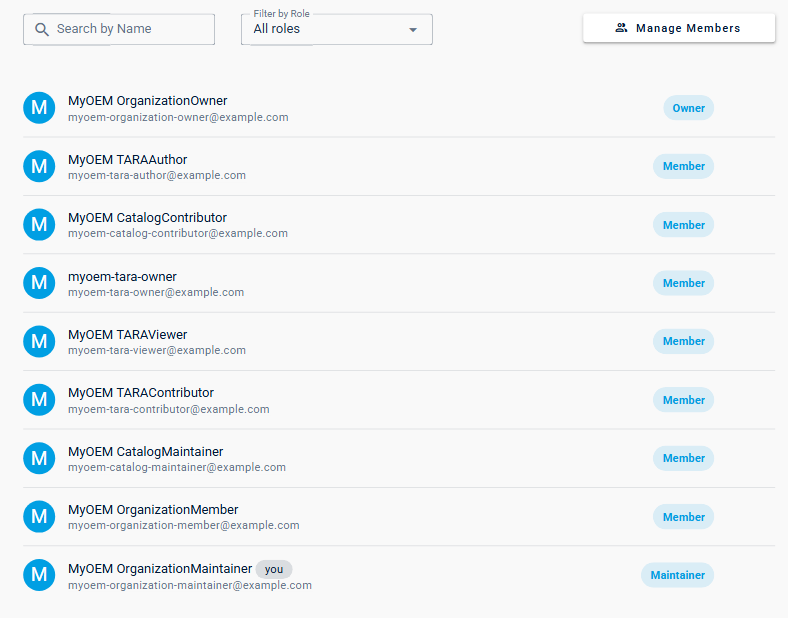
Each row shows a member with their organization role (Owner, Maintainer or Member, see Administration). you marks your own entry.
- Search by Name shows only the members whose name or user name contains what you type.
- Filter by Role shows only the members with one organization role.
- Manage Members opens the list of the organization's members and, if you manage the organization's members, the form for inviting people, see Invite people to the organization.
Change a member's role or remove a member
If you manage the organization's members, you do both in the Manage Members dialog: open the role list next to the member and choose another role, or click remove at the end of the list to remove the member from the organization.
Invitations
An invitation that has not been accepted yet appears with the invited email address and "Pending invitation, valid until …", followed by the date.

Copy Invitation Link copies a short message with the link of the invitation: "You've been invited to join … as …. Sign in or sign up with that address at …". Paste it into a message to the person you invited.
Resend Invitation renews the invitation: it is valid until a later date and, if your installation sends mail, the person receives it again. An invitation that has expired is marked with a warning sign and reads "The invitation has expired on …"; Resend Invitation renews it as well.
What the invited person does with the link is described in Accept an invitation.
Projects of a member
Click a member's row to open the dialog Manage memberships. It lists the projects of the organization the member holds a project role in, each with that role.
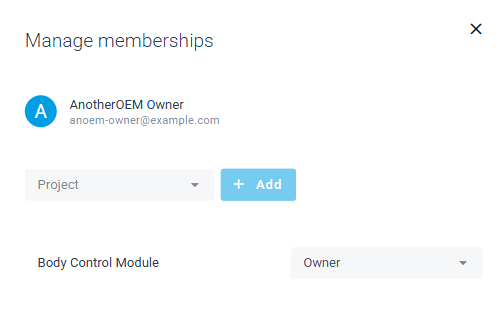
If you manage the organization's members, you can give the member access to further projects here:
- Choose the project under Project and click Add.
- Choose the member's role in the list next to the project: Viewer, Editor or Owner. The list also offers roles that do not apply to projects.
- Click Save.
To change the member's role in a project, choose another role in the list next to it and click Save. You can also give someone access to a project by sharing the project.