Manage dashboards
Dashboards in the project sidebar opens the list of the project's dashboards, next to the sidebar. Click a dashboard in the list to open it. A new project has one dashboard, Default. Depending on your role, you can add, rename and delete its dashboards.
Every change to a dashboard, its name, its widgets and their settings, is saved automatically. There is no save button.
Add a dashboard
Click + below the list of dashboards. The new dashboard opens right away, with the name "Untitled" and the description "I am a description of this Dashboard.". Give it a name of its own as described below.
Rename and describe a dashboard
- Point to the name of the dashboard at the top of the page and click the pencil icon next to it. The name and the description below it become editable.
- Change the name and the description.
- Press Enter to keep the changes.

Delete a dashboard
A project keeps at least one dashboard, so the last one cannot be deleted.
- Point to the dashboard in the list and click the delete icon at the end of its row.
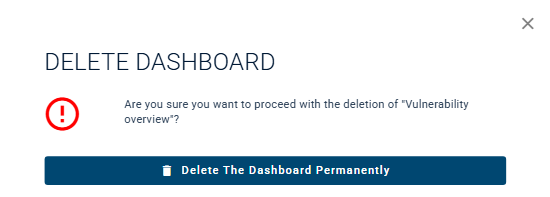
- The dialog asks whether you want to proceed with the deletion and names the dashboard. Click Delete The Dashboard Permanently.
The dashboard is removed from the list.