Navigate the overview
When you open the Data Explorer, it shows the whole snapshot, zoomed out so that every container fits in.
Zoom and move
The toolbar below the diagram has these buttons, from left to right:
- Zoom In: zoom in by 5 %.
- Zoom To Fit: zoom so that the whole diagram is visible.
- Zoom To Original: zoom to 100 % and show the middle of the diagram.
- Zoom Out: zoom out by 5 %.
- The zoom factor in percent. Type another factor and press Enter.
- Show/Hide: show or hide a small map of the whole diagram. The frame in the map marks the part of the diagram you see.

With the mouse:
- Drag the background of the diagram to move it.
- Hold Ctrl (⌘ on macOS) and turn the mouse wheel to zoom in or out at the mouse pointer.
The toolbar can be moved out of the way: drag it by the dotted handle at its left end.
Open a container
Each container is closed at first and shows only its header: the icon of the tool the artifacts come from, the name of the artifact type, and the number of its artifacts.
Click the header to open the container. It lists the artifacts of this type in alphabetical order, with a Search field above them (see Find artifacts). Click the header again to close it.
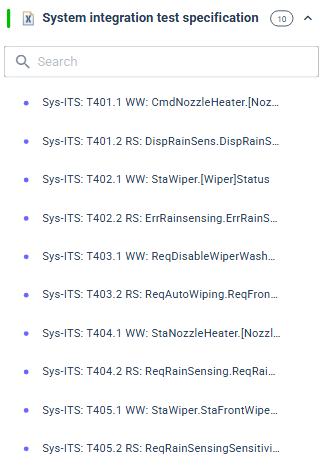
While no artifact is selected, clicking a header also selects the artifact type: its container and the containers linked to it are highlighted, all others are faded, and Properties on the right shows the artifact type.
Link dots
The dots next to an artifact show how it is linked:
- Dots on the left stand for incoming links, dots on the right for outgoing links.
- Each dot stands for one artifact type the artifact is linked to, in the color of that type. Up to three dots are shown; a number such as +2 says how many more types there are.
- An artifact without dots is not linked.
Click the dots to see the artifact types behind them: the list is titled Incoming from or Outgoing to and names each artifact type with the number of links.
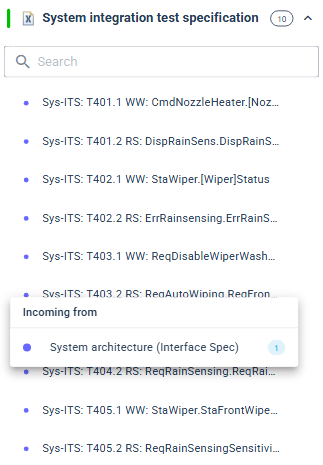
To see the linked artifacts themselves, select the artifact, as described in Follow links between artifacts.