Find artifacts
The Data Explorer has two searches: Artifact Search on the right searches the whole snapshot, and the Search field of an open container searches the artifacts of one type.
Search the whole snapshot
- Type a part of the name of an artifact, or of the value of one of its attributes, into the field under Artifact Search. The results appear while you type.
- Each result shows the icon of the tool the artifact comes from, and its name. Below the results, you see how many artifacts match.
- Click a result to select the artifact. The Data Explorer opens its container and moves the artifact to the middle of the diagram. What else happens when you select an artifact is described in Follow links between artifacts.
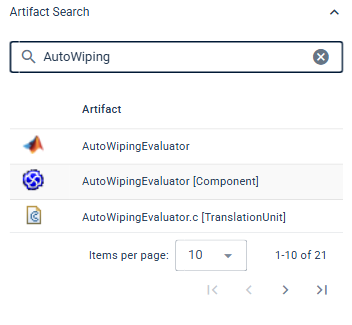
If nothing matches, the list of results stays empty. The × at the end of the field clears the search.
Search within an artifact type
An open container has its own Search field above its artifacts. Type a search term into it; the container then lists only the matching artifacts of its type. To open a container, see Navigate the overview.
While artifacts are selected, the container shows what is linked to the selection instead of the Search field. Clear the selection to search again (see Follow links between artifacts).
When the search index is being built
The first search in a snapshot can take a moment. Until ANALYZE Web App has prepared the snapshot for searching, it shows "Search index is being built, please wait…". The results then appear by themselves; you do not have to search again.