Follow links between artifacts
Select an artifact, and the Data Explorer shows every artifact it is directly linked to, in either direction. From there you can follow the trace step by step, for example from an architecture component to its design, its code and its unit tests.
Select an artifact
Click an artifact in an open container, or a result of Artifact Search. The Data Explorer then:
- highlights the selected artifact and moves it to the middle of the diagram;
- opens every container that holds the selected artifact or an artifact linked to it, and lists only these artifacts there. A line at the top says what is listed, such as 1 selected artifact: or 2 linked artifacts:;
- shows in the header of each container how many of its artifacts are listed, out of all of them: 1 / 11 means one of eleven;
- closes and fades the containers that hold nothing linked to the selection;
- shows the selected artifact under Properties.
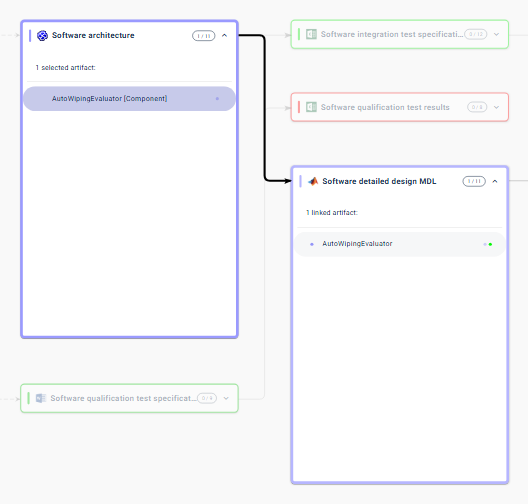
To follow the trace, click one of the linked artifacts. It becomes the selected artifact, and the Data Explorer shows what is linked to it.
Select several artifacts
Hold Ctrl (⌘ on macOS) and click an artifact to add it to the selection. The Data Explorer then shows what is linked to any of the selected artifacts. Ctrl+click (⌘+click) a selected artifact to remove it from the selection.
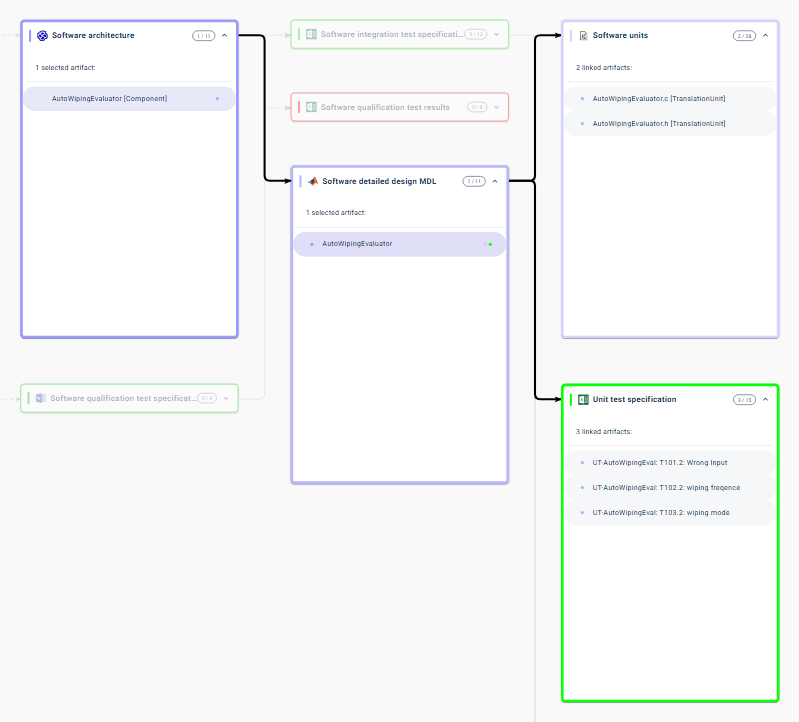
With several artifacts selected, Properties shows the one you selected last.
Clear the selection
Press Escape, or click the only selected artifact again. All containers close, except the one with the artifact you selected last.
Go back and share
Each selection is a step in your browser's history: the browser's back button returns to the previous selection, and forward goes to the next one again.
The address in your browser contains the snapshot and the selected artifacts.
When you send it to a colleague who has access to the project, the Data
Explorer opens with the same selection for them. When you have opened the
project from the project list, though, the address usually contains latest
instead of a snapshot number. Such an address opens the newest snapshot, as
described in Links to a snapshot,
so once a newer snapshot has arrived, your colleague may see different data.