Find your way around
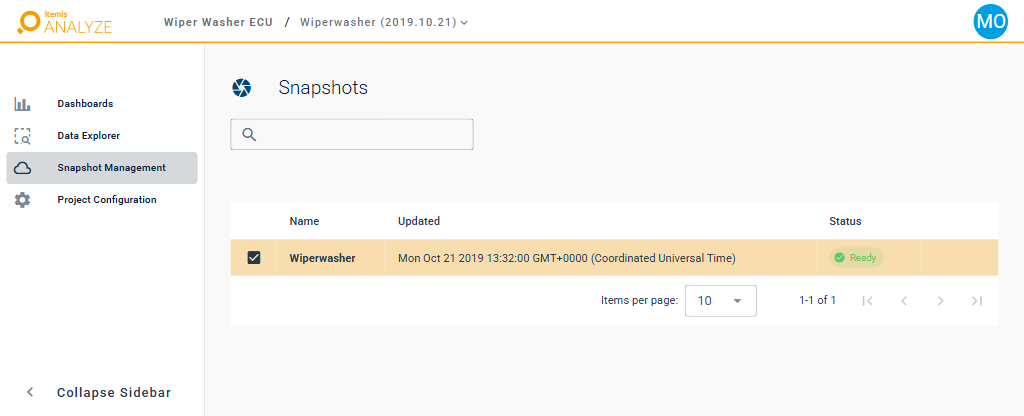
The ANALYZE Web App window has the same frame on most pages: the app bar at the top and a sidebar on the left. What the sidebar shows depends on where you are: in your organization, or in a project.
App bar
From left to right:
- itemis ANALYZE logo: takes you back to the project list of your organization.
- Project name: shown while a project is open. Click it to open the Project Configuration of the project.
- Snapshot: the name and date of the snapshot you are looking at, shown while a project with a snapshot is open. Click it to switch to another snapshot of the project, as described in Switch snapshots.
- Avatar: the round button with your initials. Its menu shows your name and has the Sign Out button (see Sign in and sign out).
Organization sidebar
On the project list and the members page, the sidebar shows the organization you are working in, with its name and its short name (slug) below it.

- ⋮ next to the organization opens the organizations menu, where you can select another organization.
- Projects lists the projects of the organization that you have access to.
- Members lists the members of the organization; see Members.
The arrow at the bottom of the sidebar collapses it to its icons, and expands it again.
Project sidebar
When you open a project, the sidebar lists its areas:
- Dashboards: charts and tables of the query results uploaded with the snapshot. See Dashboards.
- Data Explorer: the artifacts of the snapshot and the links between them. See Data Explorer.
- Snapshot Management: the snapshots of the project. See Snapshot management.
- Project Configuration: the name of the project and who has access to it. See Rename a project and Share a project.
As long as a project has no snapshot, Dashboards and Data Explorer are not available.
Collapse Sidebar at the bottom collapses the sidebar to its icons; the arrow there expands it again.