Find a project
The project list is the page ANALYZE Web App usually opens after you sign in. You also get to it with Projects in the organization sidebar, or with the itemis ANALYZE logo in the app bar.
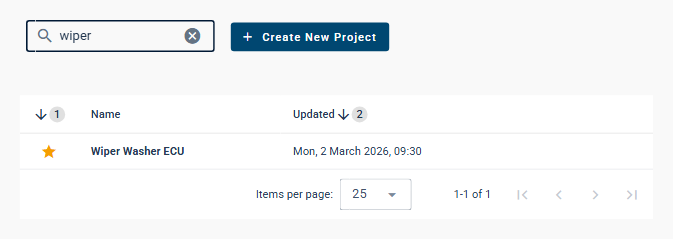
The list shows the projects of the organization that you have access to. Each row shows the name of the project and, under Updated, a date and time. Your favorites come first, then the other projects. The list shows 25 projects per page; Items per page and the arrows below it page through longer lists.
If you do not have access to any project yet, the list says "No data available".
Search
Type a part of a project's name into the search field above the list. The list shows only the projects whose names contain it; upper and lower case do not matter. × in the field clears the search. If no project matches, the list says "No data available".
Favorites
Click the star in front of a project to mark it as a favorite; it then stays at the top of your list. Click the star again to remove the mark. Favorites are your own: other people see their own favorites.
Open a project
Click the name of a project in the list. ANALYZE Web App opens it:
- on its Dashboards with the most recent snapshot, if the project has snapshots;
- on its Snapshot Management, if it has none yet.
The address in your browser then points to this page of the project, so you can send it to colleagues as a link. If they have access to the project, it opens for them as well; if they are not signed in, they sign in first.