Share a project
The dialog Manage Members of shows who has access to a project, each with their project role. There you add people to the project, change their roles and remove them.
Open the members dialog
- Open the project and click Project Configuration in the project sidebar.
- Click Share at the top right.
The dialog lists the members of the project, each with their role.
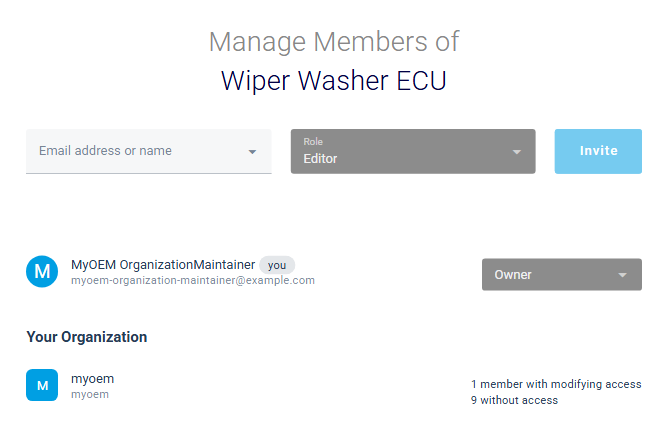
Your Organization at the bottom sums up how many members of the organization may only view the project, how many may change it, and how many have no access to it.
Depending on your role, the dialog may only show who has which role; ask an Owner of your organization.
Roles
For a project, choose Viewer, Editor or Owner in Role. The Role list also offers roles that do not apply to projects.
Add a member of the organization
- Click Email address or name and start typing the person's name. The list shows the members of the organization; people who already have a role in the project are marked "(Already a member)".
- Select the person.
- Select the Role.
- Click Add.
The person is listed with the role and has access right away.
Invite someone to the organization and the project
- Type the person's email address in Email address or name.
- Select the Role.
- Click Invite.
If the person is not a member of the organization yet, ANALYZE Web App creates an invitation to the organization, with this role in the project, and lists it as "Pending invitation". If your installation sends mail, the person receives the invitation by email; otherwise they need its link from someone who manages the members of the organization. When they accept the invitation, they become a member of the organization with this role in the project.
If the address belongs to a member of the organization already, the person gets the role right away.
Change a role or remove someone
Click the role of a member and select another role. The change applies right away.
To take away someone's access, click their role and then remove at the end of the list. For a few seconds, ANALYZE Web App offers Undo to bring the member back. For a pending invitation, remove takes away the role in this project, without Undo. If the invitation was only for this project, it is withdrawn.