Switch snapshots
The app bar shows the name of the project and, next to it, the snapshot you are looking at, with its date. The dashboards and the Data Explorer always show this snapshot.
Choose another snapshot
- Click the snapshot name in the app bar. A list of the project's most recent snapshots opens, each with its date and name. The snapshot you are looking at is highlighted.
- Click the snapshot you want to look at.
ANALYZE Web App says "Snapshot … selected!", and the page you are on shows the chosen snapshot.

To find a snapshot in the list:
- Type part of its name or date into the search field. If no snapshot matches, the list says "No Snapshots available!".
- Below the search field, the list shows the period it covers, ending today. Snapshots outside this period are not listed. The × at the end of the period removes it, so the list is no longer limited to a period; Date opens a calendar to choose another period.
A snapshot that is not processed yet, or could not be processed, cannot be chosen. While it is being processed, it is marked with a spinning circle; if it could not be processed, with a red exclamation mark.
To look at an older snapshot that the list does not show, page back in the list on Snapshot Management and click it there.
When you switch snapshots in the Data Explorer, the artifacts you had selected are no longer selected: they belong to the other snapshot.
When a newer snapshot arrives
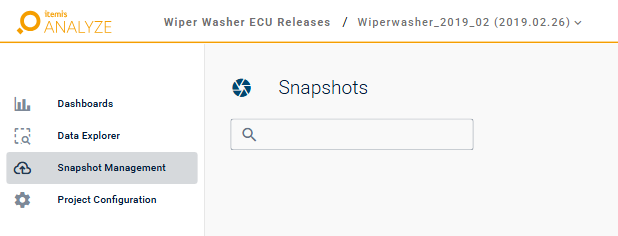
While you work in the project, the snapshot you chose stays. If the project has a newer snapshot than the one you are looking at, the icon of Snapshot Management in the project sidebar shows a cloud with an arrow.
When you open the project again from the project list, ANALYZE Web App shows its newest snapshot.
Links to a snapshot
On the dashboards and in the Data Explorer, the address in your browser
contains the snapshot you are looking at. When you send it to a colleague who
has access to the project, it opens the same snapshot for them. Where the address contains latest
instead of a number, it always opens the newest snapshot.