Snapshot management
Snapshot Management in the project sidebar lists the snapshots of the project, newest first.
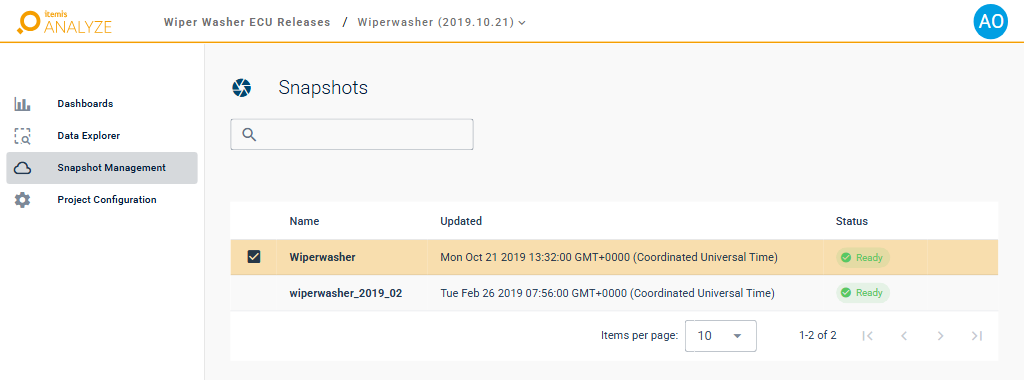
The list of snapshots
- The check mark at the left marks the snapshot you are looking at: the one the dashboards and the Data Explorer show.
- Name: the name of the snapshot.
- Updated: the date and time of the snapshot.
- Status: whether you can look at the snapshot yet.
- New: the snapshot has arrived but is not processed yet. You cannot look at it yet.
- A spinning circle: the snapshot is still being processed. Point at it to see Preparing Snapshot.
- Ready: the snapshot is processed, and you can look at it.
- Failed: the snapshot could not be processed, and you cannot look at it. Ask your administrator to check the job that uploads the snapshots.
The list shows 10 snapshots per page. Items per page and the arrows below the list show more of them.
The list is loaded when you open the page. A snapshot that arrives while you have the page open appears when you open the page again or reload it. If a snapshot in the list is not processed yet, ANALYZE Web App keeps checking it and says "Snapshot '…' is ready!" as soon as you can look at it.
The icon in the sidebar
The icon of Snapshot Management in the project sidebar tells you about the newest snapshot of the project, as far as ANALYZE Web App has loaded it:
- A cloud: you are looking at the newest snapshot.
- A cloud with a clock, and a spinning circle next to the entry: the newest snapshot is still being processed.
- A cloud with an arrow: there is a newer snapshot than the one you are looking at. See Switch snapshots.
- A cloud with an exclamation mark: the newest snapshot could not be processed.
Look at a snapshot
Click a snapshot with the status Ready. ANALYZE Web App says "Snapshot … selected!" and opens the dashboards with this snapshot. From then on, the Data Explorer shows it as well.
If the snapshot has any other status, ANALYZE Web App says "Snapshot is not ready yet. Please wait for the import to finish." and keeps showing the snapshot you had.
The other ways to switch snapshots are described in Switch snapshots.
Delete a snapshot
Deleting a snapshot removes it from the project for everyone. This cannot be undone.
- Point at the snapshot in the list and click the trash icon at the end of its row.
- ANALYZE Web App asks whether you are sure. Click Yes, Continue With The Process.
- Type
DELETEinto the field and click Delete The Snapshot Permanently.
The snapshot disappears from the list. As the dialog says, it is removed for good within the next few days.