SCXML Code Generation
This example demonstrates how to generate SCXML code from a statechart. We will use a simple light switch example and focus on the generator model.
Generator Model
In order to generate code we need to specify which code generator to use and into which folder to generate. For this, we need to create a so-called generator model. To do so,
- Select the models folder in the Project Explorer
- Right-click and choose New -> Code generator model
- Follow the wizard to select the SCXML code generator and the state machine for which you want to generate SCXML code
The new generator model will look similar to this one:
/* Defines which code generator to use */
GeneratorModel for create::scxml {
	/* Refers to the statechart model 'LightSwitch' */
	statechart LightSwitch {
		/* Specify the target location for the generated artifacts. */
		feature Outlet {
			targetProject = "itemis.create.examples.codegen.scxml"
			targetFolder = "src-gen"
		}
	}
}
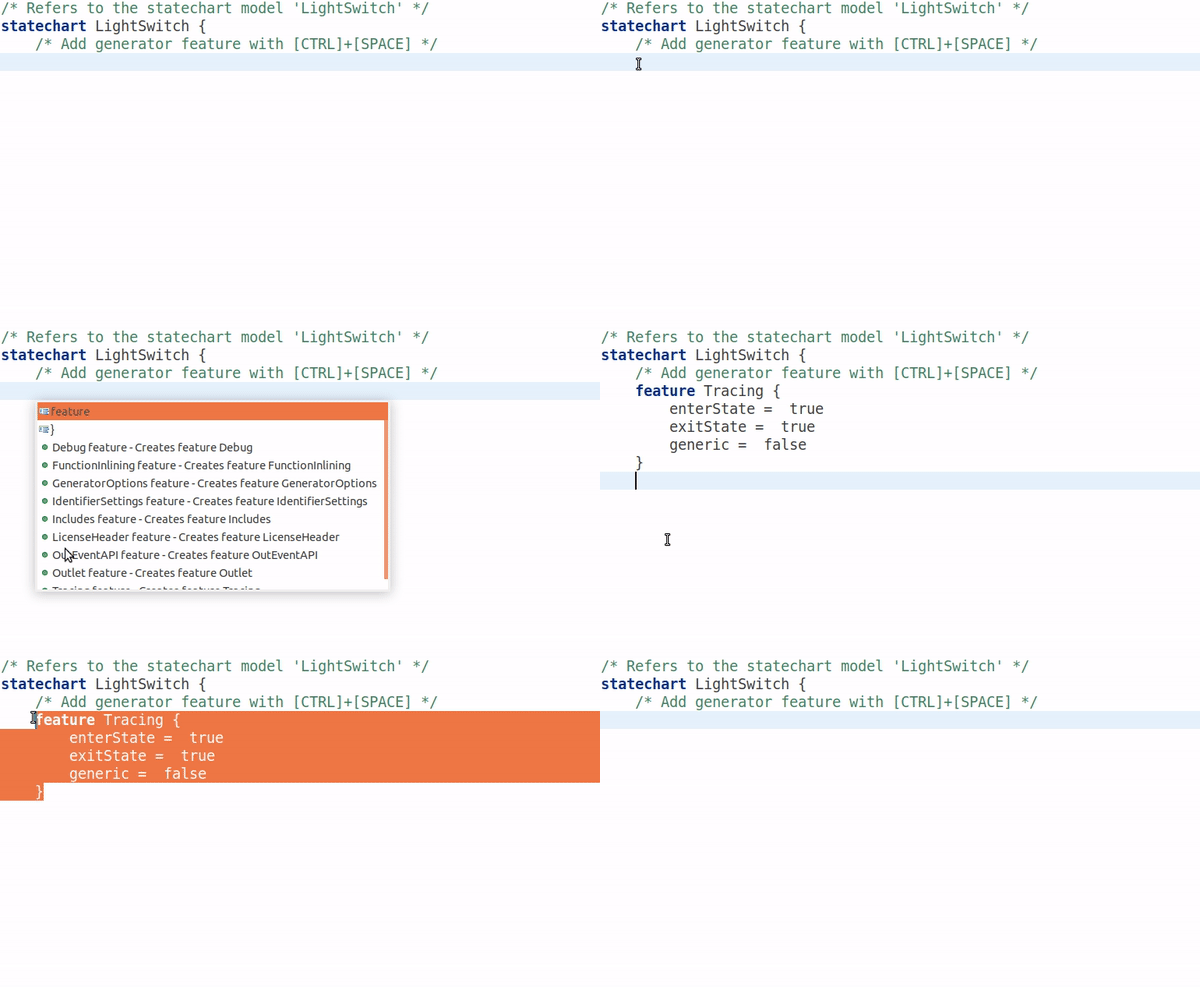
This is the simplest possible generator model. Press [CTRL]+[SPACE] to get a list of available features. For more information, please refer to our documentation.
Invoking Code Generation
Code generation is usually invoked each time the statechart model is saved. This behavior can be disabled by unchecking the option Project -> Build Automatically. You can always manually invoke the code generation with Generate Code Artifacts in the context menu of the generator model.
The Example Application
As an example application we will use the light switch example with brightness adjustment from the Basic Tutorial.
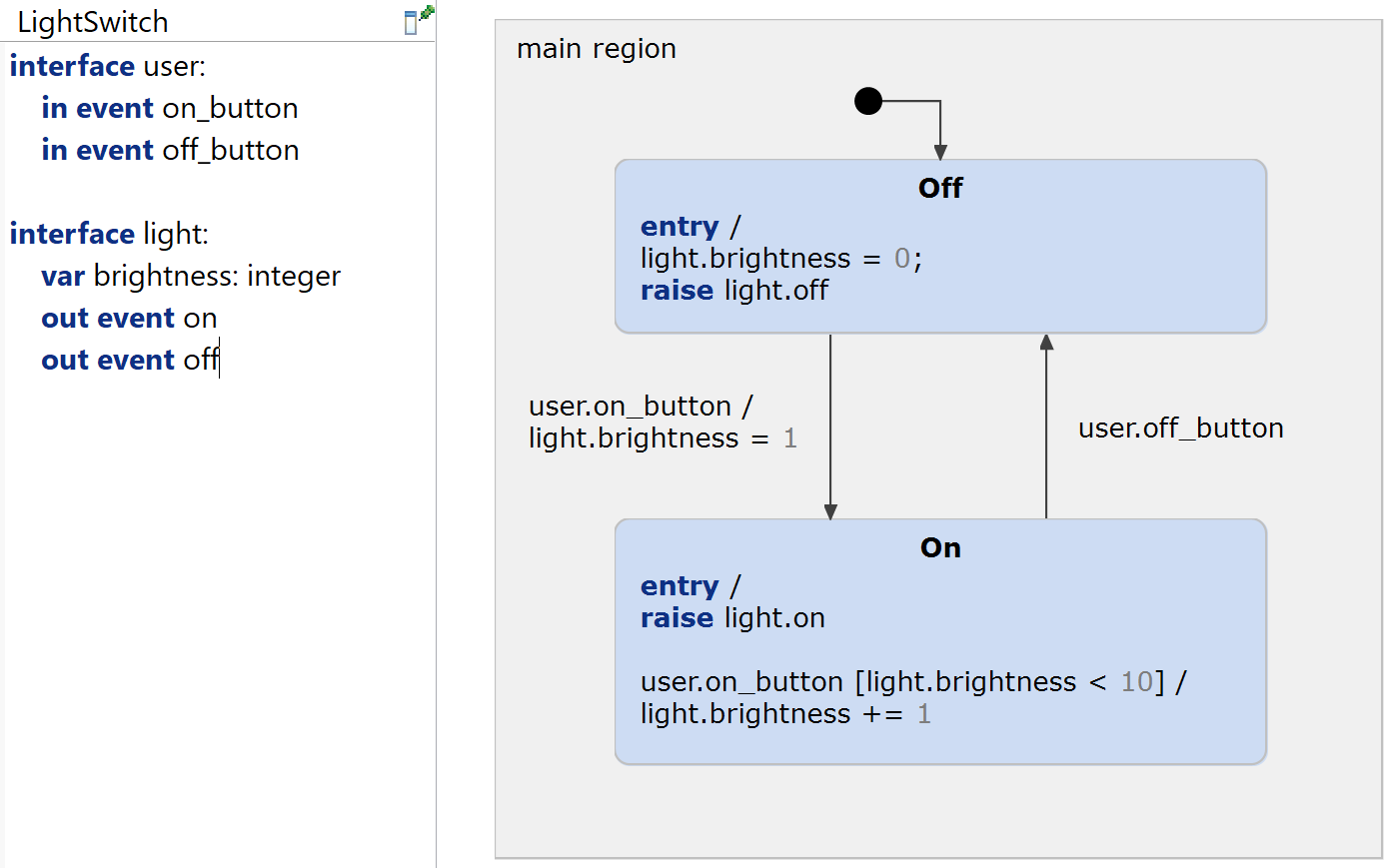
The code will be generate to a LightSwitch.scxml file. You can run the application with Run As -> Statechart Simulation on the light_switch.sct file. The generated scxml will be interpreted using Appache's Commons Engine.
Get this example
The complete project — statechart models, sources and build files — lives in the itemis CREATE examples repository. Inside itemis CREATE for Eclipse you can import it directly with the example wizard.