itemis SECURE 25.1
Overview
With SECURE 25.1, we placed a strong focus on the stability of our platform. As part of our ongoing efforts to maintain your trust in our application and ensure a fast response to emerging security concerns, this release marks another important step toward a more modern and secure platform foundation.
We've also made meaningful improvements to the project migration workflow to help preserve the integrity of your projects across versions. With enhanced guidance and updated tooling, these changes support smoother and more reliable transitions between releases.
As we continue to strengthen the connection between our RCP and SECURE Web offerings, we are expanding integration points to support complementary workflows. This ongoing effort is laying the foundation for you to benefit more directly from Web-based features — especially with the next planned major release and beyond.
Finally, we invested heavily in performance enhancements across key editing areas, especially for large and complex projects. These changes aim to improve responsiveness and give a smoother, more reliable modeling experience.
We believe these enhancements will make your experience with itemis SECURE even more efficient and effective. As always, we're committed to continually refining the tool, and we sincerely appreciate your continued support.
:::warning Prerequisite migration step To upgrade to SECURE 25.1, projects created with older versions or those that skipped intermediate releases need to be migrated with SECURE 24.3 first. This step is necessary because some legacy migration support has been removed.
The improved migration checker will help guide you through these steps by clearly showing what's needed to complete a smooth migration. Additionally, a comprehensive project migration chapter has been added to the user guide to support you throughout the process. :::
Platform Migration
In our ongoing efforts to improve usability and accessibility, as well as stay up to date with security and safety developments, we migrated our RCP to the next platform version. Here's a list of the most notable changes that you will be able to observe.
Zoom in and zoom out
The font size can be quickly adjusted in an open editor window by holding Ctrl and rolling the mouse wheel. Font size changes are not persistent, so when you reopen the file, the text size will be reset to the default value. You can enable/disable this feature in Settings > Editor > General section: Change font size with Ctrl+Mouse Wheel.
Font weight options
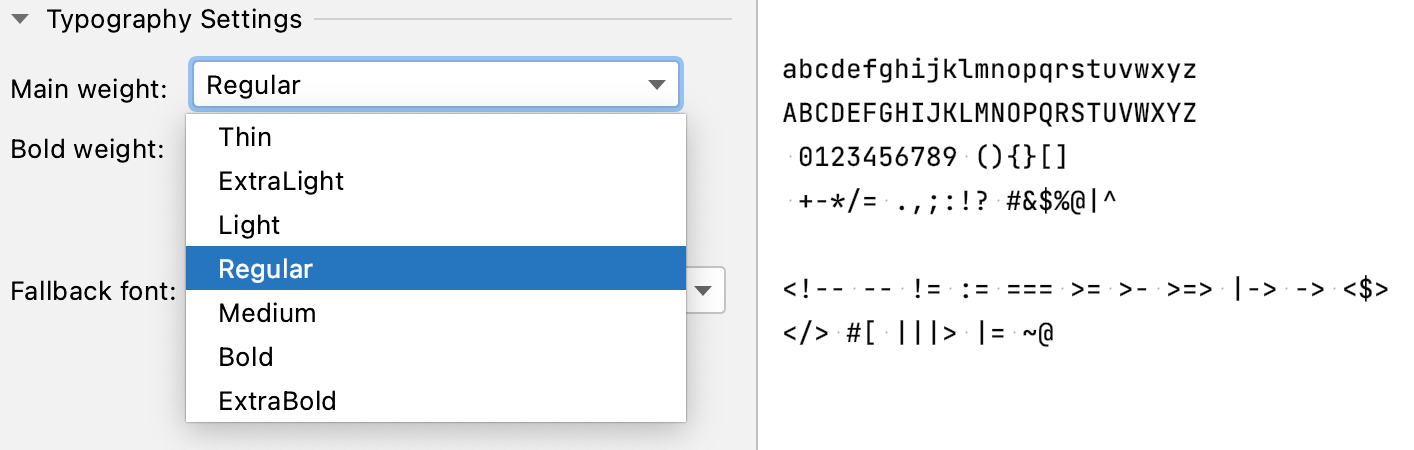
Choosing an editor font that you can look at without difficulty for long stretches of time is crucial. The recently added typography settings make this choice a bit easier and more personalized. You can fine-tune the weight of your main and bold font styles in Settings > Editor > Fonts.
Improved accessibility
In this release, we've added more labels to UI elements on the Welcome screen, in the Project Structure view, and in the VCS log. These elements, as well as gutter icons, are now read out correctly when a screen reader is enabled.
Automatic completion pop-up
The completion menu, which is normally invoked by pressing Ctrl + Space or often appears when clicking on a link on your model, now also pops up automatically after you stop typing, with a half-second delay by default. It can still be opened manually if needed. Automatic invocation is a bit different from manual invocation (which includes click-invocations) in the following ways:
- It never opens in an empty cell.
- It never opens if there are no suggestions to offer.
- It closes automatically if there are no suggestions to offer.
- It closes automatically if you delete all text and leave the cell empty.
This feature can be turned on or off by toggling Show suggestions as you type in the Editor > General > Code completion section. The setting is on by default.
Tooltip Radar
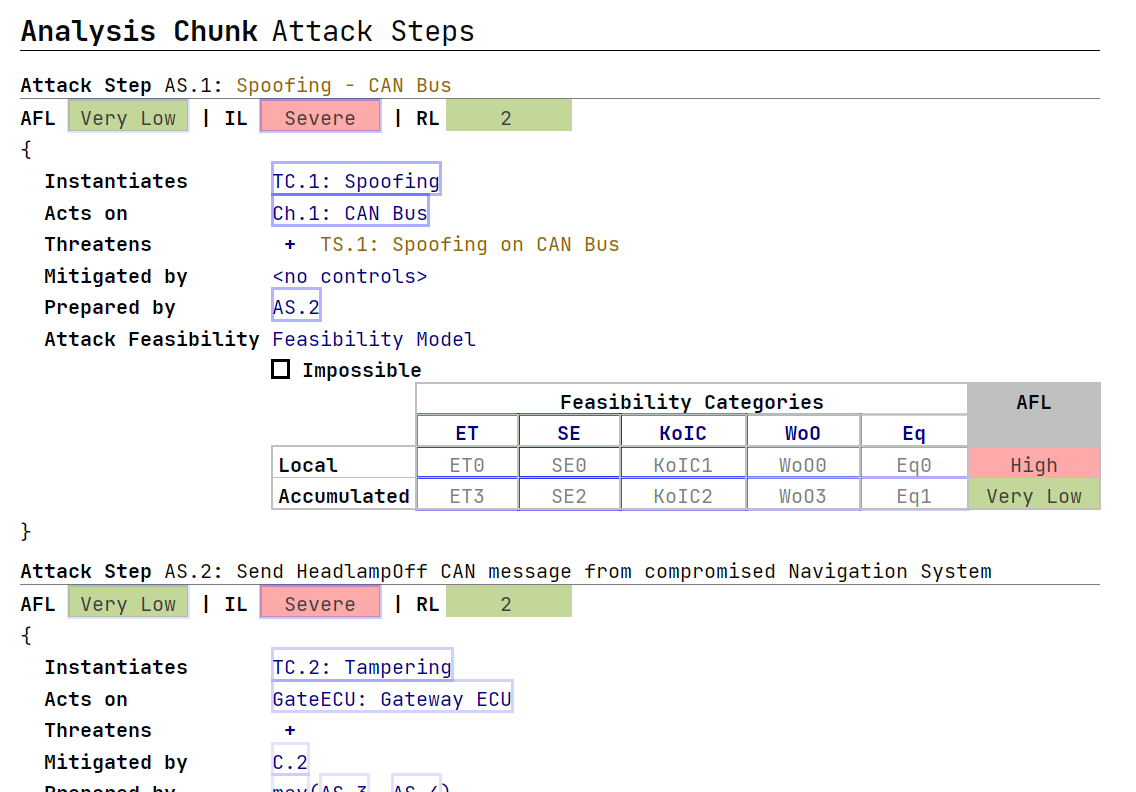
The Tooltips feature now has a functionality called radar that shows which cells have tooltips. The Tooltip radar can be activated by pressing and holding the Ctrl key.
New Changes tool window
In SECURE 25.1, the RCP shows the difference between commits in a separate Changes tool window located on the left of the editor.
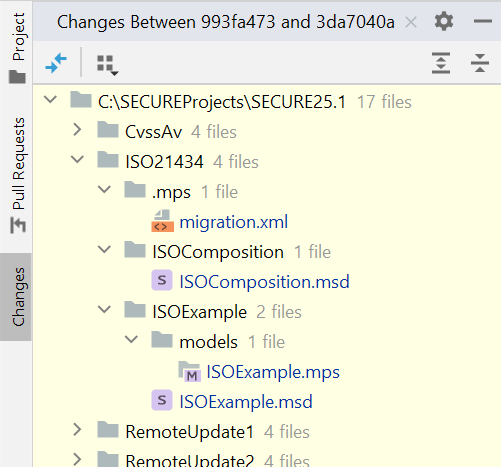
As with every tool window, you can change the mode of display and go back to a windowed/floating mode using the settings found under the cog icon.
Unified Show Diff
The RCP now displays the difference between the initial and changed versions of files in the editor tab. It doesn't matter how you invoke the Show Diff action, the RCP will open the diff in the editor by default.
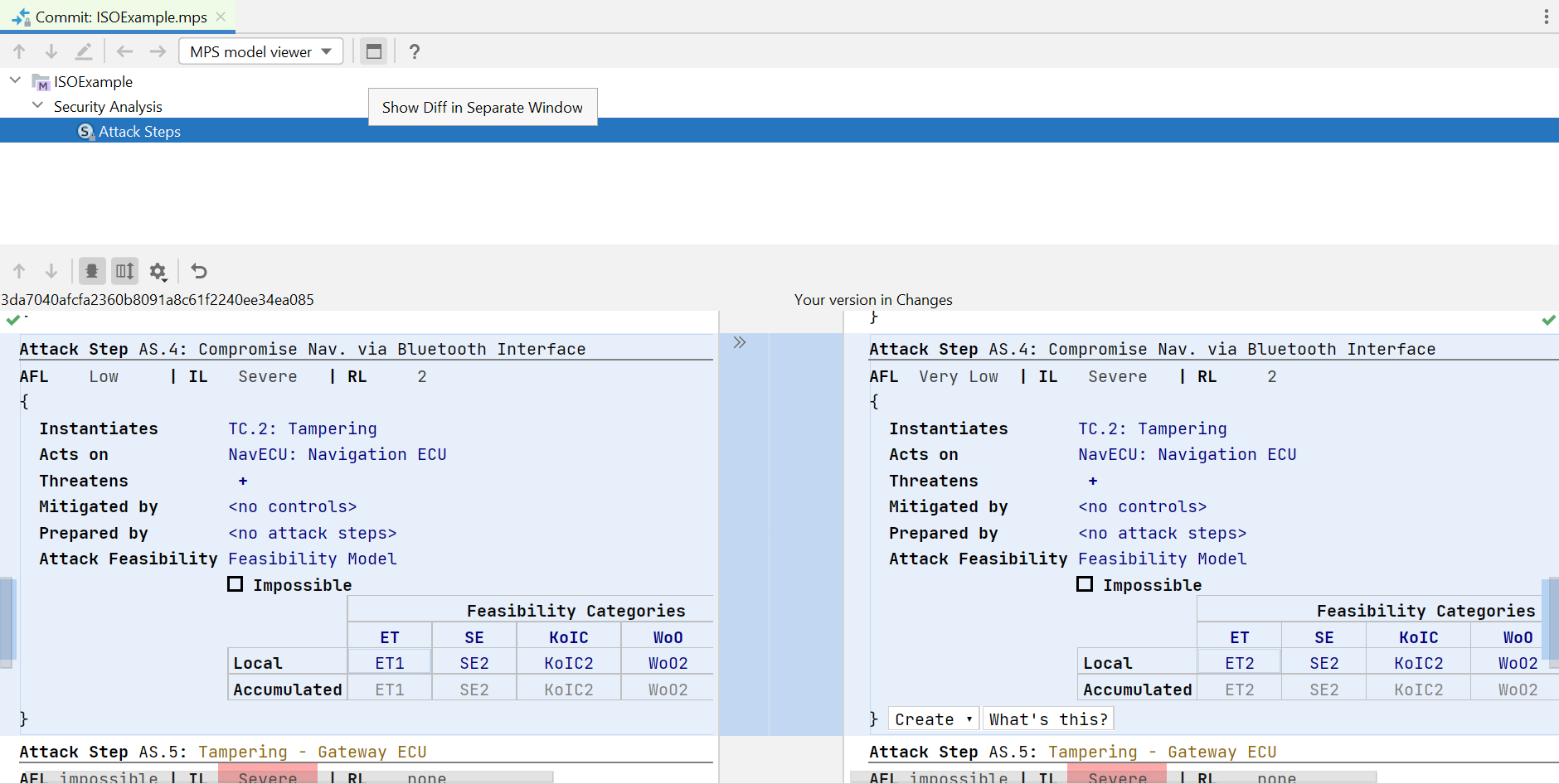
If you find it more convenient to track changes in a separate window, you can drag the desired file from the editor. If you do, the RCP will remember this and will open future diffs in a separate window.
New navigation option in Settings
New arrows are located in the top right-hand corner of the window in Settings to help you navigate through the sections. They allow you to jump back and forth between the sections.
Reorganized VCS settings
The VCS settings have been reorganized to make them more discoverable and usable. In Settings > Version Control you will now find a list of the available settings to configure your VCS. Additionally, we've added a separate node for Directory mappings, and the background operations are now switched on by default.
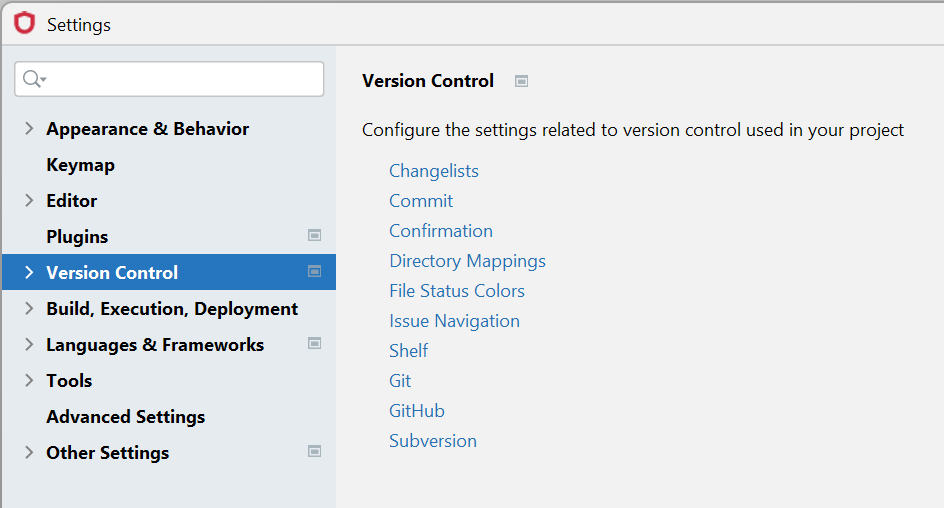
If you go to the Git node, you'll notice that we have divided all of the settings into sections that account for the most important processes: Commit, Push, and Update.
Raised visibility of discouraged parallel RCP usage
As part of this RCP platform update, the underlying framework now performs stricter checks on shared system resources. As a result, if you open multiple SECURE RCP sessions in parallel, you may encounter an error message about port conflicts.
This message can usually be ignored, as it does not directly affect project data. However, please note that running more than one RCP session at the same time — especially when working with the same project — can lead to inconsistent or corrupt model states. This has always been discouraged and remains unsupported.
For stable results and safe project handling, we strongly recommend using only one RCP session at a time.
Improved project trust management
To better protect your environment from untrusted code and configuration files, the platform now includes built-in project trust management. When opening a project for the first time, you'll be prompted to confirm whether you trust the project or its folder. You can choose to:
- Trust just this project, which allows it to open now without affecting other projects
- Trust the entire folder, so that future projects from the same location are trusted automatically
- Decline, which cancels the project loading
This mechanism ensures that only known and trusted projects are fully opened and executed within your workspace, reducing the risk of accidentally working with potentially harmful or misconfigured content.
Once a project or location is marked as trusted, it won't prompt you again. You can review or adjust your decisions at any time under Settings > Build, Execution, Deployment > Trusted Locations.
Additional details for advanced use cases
Root annotation improvements
Version Control System support improves root annotation. A new algorithm for calculating revision changes with movement tracking is now used for root annotation. The colors for annotated lines/cells are determined using only those revisions where the root was changed. The annotated cells now have a special context menu group when the annotation column is open. You can apply Copy Revision Number, Show Diff, and other actions to each annotated cell.
Diff dialog for merge commits
The Diff dialog is enabled for merged commits in the Git log. The viewer displays three panels — the center panel for the merged model, and the left and right panels for the models of the two merged branches.
Synchronize scrolling in the Diff editor
It is now possible to switch off the editor scrolling synchronization in the Diff dialog with a button.
Improvements to wrapping and unwrapping changes in the VCS diff
Wrapping changes are now much more flexible. It is possible to have independent internal changes inside wrapping and unwrapping changes. In addition, it is possible to have several wrapping and unwrapping changes next to each other. The internal moves are now detected inside nodes with changed IDs.
Hide revision action in annotate
Some revisions may contain low-level migrations, and when they affect the whole root, it might be undesirable to see them in the annotate column. The existing action Annotate previous revision opens the editor in a separate tab for a root at the selected commit. The new action Hide Revision allows you to exclude a revision from the annotation result in-place and show the result in both the editor and gutter. The excluded revisions can be restored with the opposite action Restore Hidden Revisions.
Information about hidden revisions is displayed in the notification panel at the top of the editor. It is also possible to restore hidden revisions by clicking on the corresponding link in the notification panel.
Details dialog in merge roots
The Show Details action has been introduced to give more details about the branches during merging. The action is accessible from the Merge revision window.
Short change descriptions in tooltips in Diff dialog
We've introduced a new action that can change the description of the changes in the Diff dialog tooltips. The description is shorter and more readable.
New diff algorithm in the merge process
A new algorithm for calculating changes between two models was introduced with a previous version. The algorithm allows you to detect node movements and define new change types. Since node movement is often a result of wrapping the node with a new parent node, new change types were introduced for wrapping changes, as well.
The new algorithm was developed to find conflicting, non-conflicting, and symmetric changes for changes of new types. We've introduced a UI mechanism for switching between the algorithms with and without node movement tracking in the Merge window.
Nested wrapping and unwrapping changes detected in diff dialog
Even though it was previously possible to detect internal insertions, deletions, and moves inside the wrapping or unwrapping change, nested wrapping changes were not detected. Now it is possible to detect nested wrapping and unwrapping changes.
Checkout and Rebase onto Current for remote branches
The action to Checkout and Rebase onto Current lets you check out the selected branch and rebase it on top of a branch that is currently checked out. This was possible only for local branches before, but now you can use it with remote branches as well.
New Push All up to Here action
This feature allows you to push only the commits you are confident about and leave the rest for later. To use it, pick the commit you want to stop at, right-click on it to call the context menu, and select the new Push All up to Here action.
Project Migration
Provided comprehensive guidance on project migration
To support you through the process of migrating projects to newer versions of SECURE, we've added a dedicated chapter to the user guide focused entirely on project migration. Whether you're wondering why migrations are necessary, unsure how to begin, or encountering issues along the way — this new material is designed to help.
The chapter offers general context, clear explanations, and a detailed, step-by-step walkthrough of the migration process. It also includes practical tips and troubleshooting advice, so you can approach migration tasks with greater confidence and clarity.
You can find the new chapter under project migration.
Improved migration path handling and updated compatibility checks
To keep our codebase modern, maintainable, and resilient against newly published vulnerabilities, we regularly clean out unused or obsolete components. As part of this ongoing effort, we've removed several outdated migration links. While this improves overall security and development agility, it does come with a trade-off: projects created with older versions of SECURE can no longer be migrated directly to 25.1 or later.
Instead, such projects must first be migrated using version 24.3. This interim step bridges the removed functionality and ensures data consistency across versions.
To help you navigate this updated process, we've overhauled the migration state checker that runs when a project is opened. It now:
- Identifies any intermediary versions required for a successful migration,
- Clearly communicates those steps in the updated dialog,
- And remembers past rebranding cases, like those introduced in version 22.3.
We've also modernized the dialog's language and structure to make the guidance clearer and more user-friendly. If you're migrating from a particularly old version, all required steps will now be presented at once, avoiding any trial-and-error guessing.
In rare cases, freshly migrated projects may not open on the first try. This is due to quirks in the underlying platform logic, which sometimes needs a second attempt to register changes. If this happens, please just try opening the project again.
Looking ahead, we'll aim to keep migration requirements as smooth and flexible as possible. However, as part of our security hygiene, you may encounter more of these clean-up steps in the future — especially as we respond to newly disclosed software vulnerabilities.
SECURE Web
In our ongoing efforts to prepare for seamless use of our SECURE Web alongside the RCP, and to provide meaningful enhancements to your existing setup, we introduced new features in the RCP that enable the Web to deliver even more benefits down the line.
Streamlining the risk model for a Web-based future
As part of our ongoing efforts to transition projects to the Web and to support smoother upgrades to newer platform versions, we've removed the ability to define custom aggregators and combinators in the Risk Model.
These custom functions — used in rare cases to adjust risk calculations to very specific needs — traditionally required itemis support to implement and maintain. Since this type of customization wouldn't function the same way in the Web environment, and because we were able to replace the few in-use examples with reusable, default aggregators, we've removed support for custom functions entirely. In their place, we've introduced new pre-selectable operations that should offer sufficient flexibility in most cases.
This change also allowed us to significantly simplify the internal risk calculation logic. As a result, the Apply Method Configuration buttons in the toolbar and in the Risk Model have been removed, as they are no longer necessary.
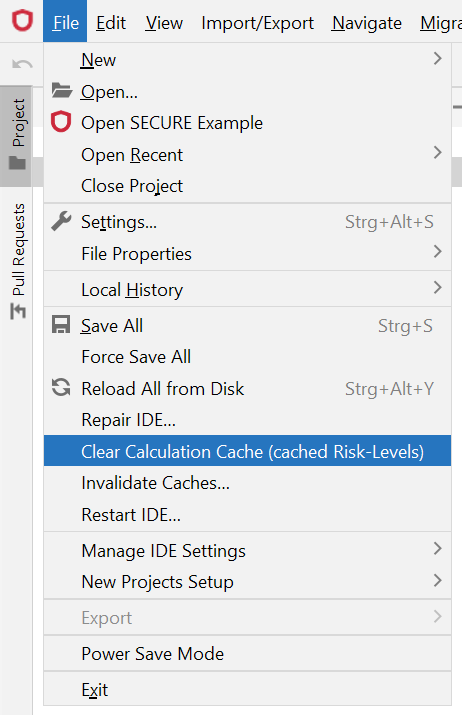
As the former Apply Method Configuration button was removed alongside the simplification of the risk model, we've made the previously hard-to-discover action to clear cached risk levels more accessible. You'll now find it in the main menu under File > Clear Calculation Cache (cached Risk-Levels). It serves a similar purpose — allowing you to manually refresh calculated values if the engine doesn't fully pick up recent edits. After triggering the action, simply refresh the current chunk (e.g., with F5) to see the updated results.
We've rigorously tested the updated implementation. However, because custom code was previously possible, there might be edge cases where unexpected behavior occurs. We're committed to addressing these quickly — please reach out if you experience anything unusual after upgrading.
This change will also slightly alter the set of dependencies in your model during migration, so don't be surprised if your project structure reflects that.
If you previously relied on custom aggregators or combinators and anticipate challenges with the migration, let us know so we can support you through the transition.
Added support for lifecycle vulnerability tracking in RCP and XSAM
To support security across the full development and operational lifecycle, we've introduced initial support for lifecycle vulnerability tracking — monitoring and documenting vulnerabilities discovered after the initial TARA is complete. This becomes relevant once components or vehicles are in production, but newly reported weaknesses still require attention and treatment decisions. The feature also lays the groundwork for upcoming integrations with itemis ANALYZE.
To support this, we introduced the following capabilities:
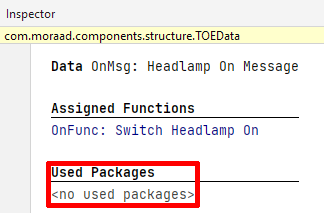
- In the Inspector of Components, Data, and Channels (in the Item Definition layer), you can now list included software or hardware packages. These entries should reflect what your SBOM or HBOM lists for the respective elements.
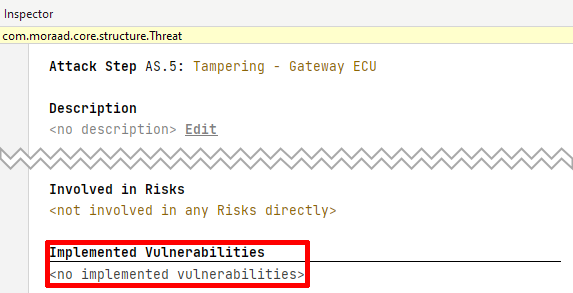
- Attack Steps that implement known vulnerabilities now feature a new Implemented Vulnerabilities field in their Inspector. Here, you can specify one or more CVE identifiers (or similar schemes) that this particular Attack Step is modeled after.
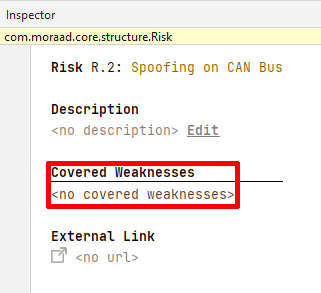
- On the Risk level, you can now configure a list of Covered Weaknesses, referencing vulnerabilities that are being explicitly addressed through your model. These do not yet reflect whether the weakness is ignored or actively treated. That decision is made separately in the Risk Treatment chunk, where you can document the rationale and planned handling.
These fields are currently informational in the RCP and do not affect modeling behavior directly. However, they provide a structured way to document known vulnerabilities, and — when used in SECURE Web — they become actionable. There, you'll benefit from enhanced support like CVE verification and notifications about new vulnerabilities relevant to your system. For details regarding the itemis SECURE Cloud features please contact our support team directly.
Performance
Improved clarity and performance by restructuring TARA elements
Both to pursue better overall performance and to align our RCP product with our maturing web offerings, we reconsidered and refined how TARA elements are displayed and what information is shown in the Main Editor vs. the Inspector. These are the most notable changes:
-
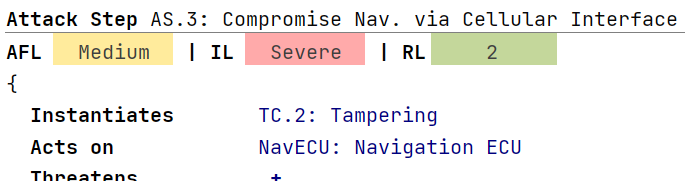
Instead of showing the IL/AFL/RL triplet separately to the right and vertically aligned, we now display it directly underneath each element's name/title, making it visually part of the element and better coupled to its context.
-
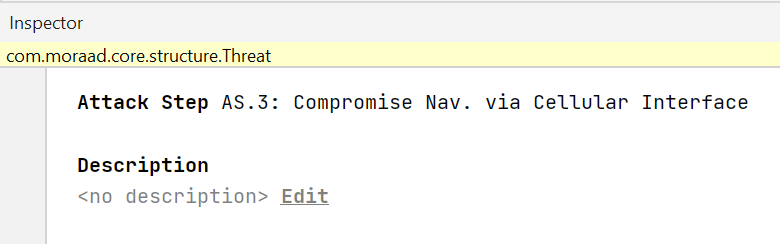
To make room and reduce visual clutter, descriptions have been removed from the Main Editor and are now only shown in full in the Inspector. The Main Editor representation was always truncated, so this change also improves clarity.
-
The Local Risk Level matrices for Attack Steps, Controls, and Threat Scenarios were moved to the Inspector, as they occupied space even when collapsed and were used infrequently. For Risks, however, they remain in the Main Editor, as they are a core part of the element's semantics.
-
To simplify the interface, we removed the header buttons in certain TARA chunks that expanded or collapsed all Risk Level details. These controls became unnecessary after relocating the Risk Level information to the Inspector.
-
To better use screen space, the Inspector has been moved from the bottom right to the right-hand sidebar, enabling a two-column editing workflow. If you prefer the previous layout, you can move the view back by clicking the cog icon in the Inspector and selecting your preferred location.
-
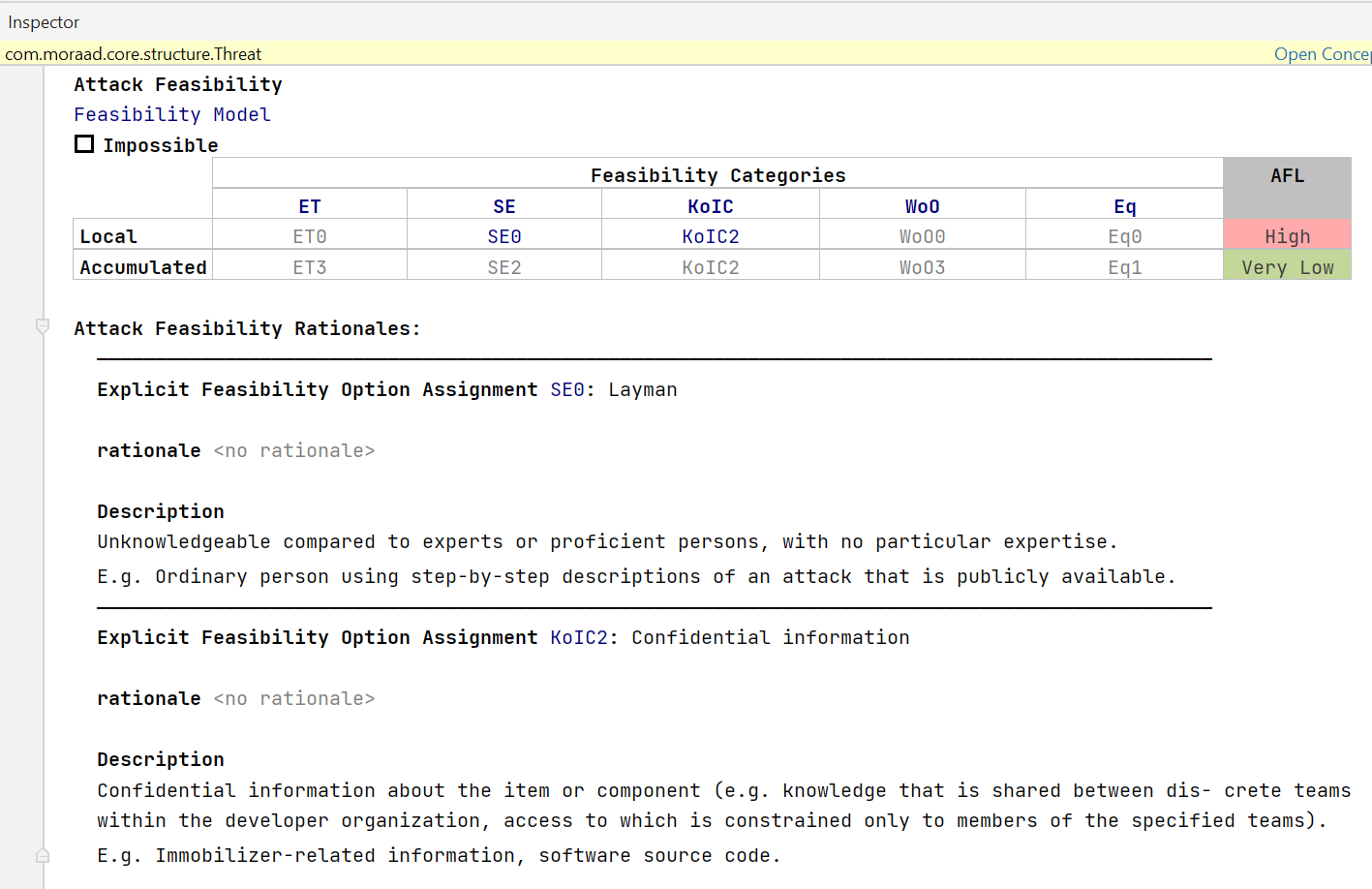
For Attack Steps, Controls, Threat Classes, and Control Classes, we now always show the rationale for configured Impact Options in the Inspector. This section shows all explicitly selected options, not inherited ones, to clarify that rationales only apply to selections on the current element. If you want to add a rationale for an inherited option, either navigate to the base class or explicitly select the option in the feasibility table.
-
Wherever we previously displayed incoming relationships — such as the Mitigates list in Controls, Threatens in Attack Steps and Threat Scenarios, or Threat Scenarios in Damage Scenarios — we made the following improvements:
- Removed broken tooltips,
- Switched to showing both name and title in a vertical list,
- Mirrored the same information in the Inspector (see the Performance Editors section for why).
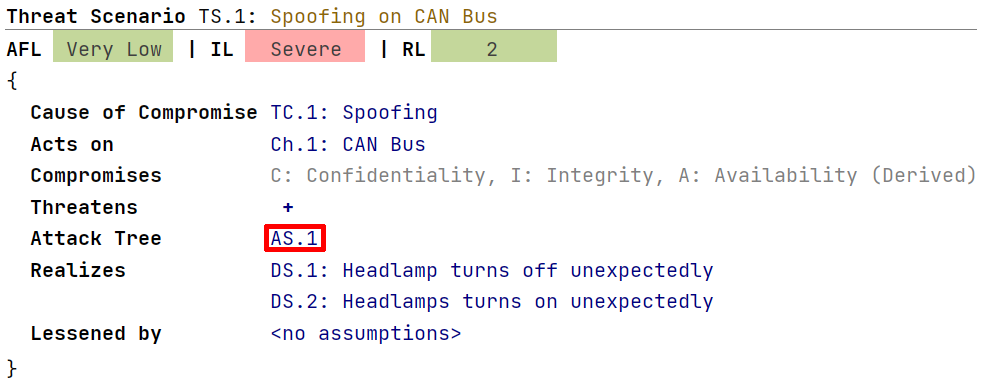
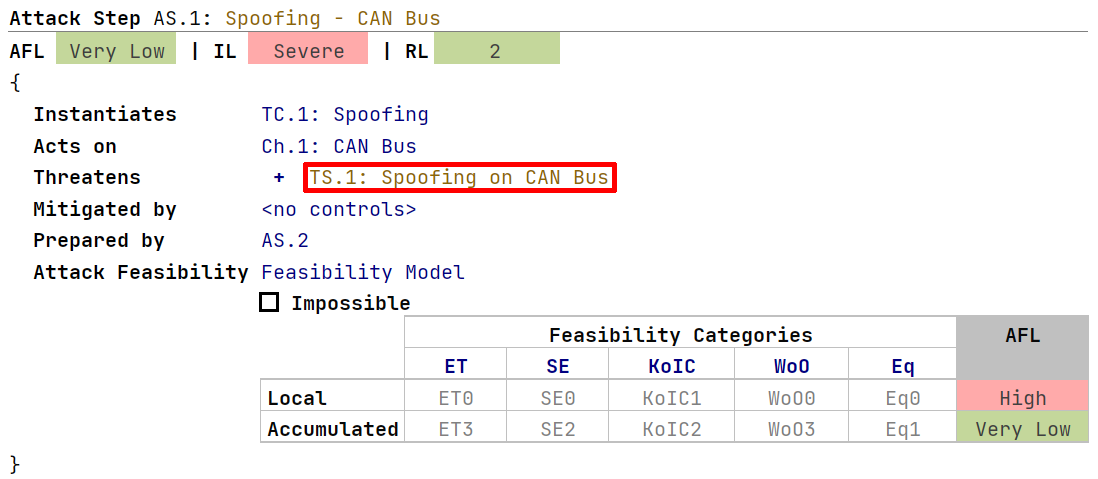
On incoming relationships: the relationship is defined in the source element and shown as an incoming relationship in the target element. This ensures you always see which elements relate to the current one — even if the link itself is configured on the other side.
Introduced "Performance Editors" mode for improved large model handling
With one of the recent releases, we introduced an option to move the Attack Feasibility Tables of Attack Steps, Controls, Threat Classes, and Control Classes to the Inspector. While this was intended as a performance optimization, the actual benefits were limited, and the change made certain modeling tasks harder to complete.
We've now replaced that approach with a more effective and accessible solution: a generalized Performance Editors mode that should make even larger chunks smoothly editable again. This new mode offers significant improvements while still allowing full access to important model information.
We are actively exploring additional ways to support the modeling of large and complex systems. In the meantime, this mode should help bridge that gap. That said, we still recommend semantically splitting large numbers of similar elements — like Attack Steps — into several smaller chunks wherever possible (e.g., grouped by Acts On entity). Smaller, focused chunks consistently yield better performance and easier navigation.

Changes in this release include:
-
The previous Toggle Feasibility Table Location action has been replaced with a more visible and generalized Performance Editors toggle, now located directly in the main Action Menu. The button clearly reflects whether the mode is currently active.
-
If you were already using the older Table Location toggle in your project, your existing setting will carry over and automatically activate the new mode.
-
With this mode enabled, you can now properly interact with rationale entries for explicitly selected Impact Options in the Attack Feasibility Table — something that was previously not possible.
-
To reduce clutter in the Main Editor, information about incoming relationships — as described in the previous section — is now shown only in the Inspector. This keeps the Main Editor focused while still giving you easy access to these important details.
-
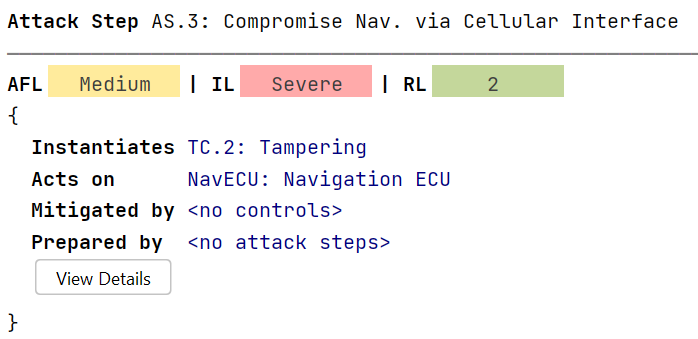
For any elements where details were moved out of the Main Editor, we added a dedicated button to guide you to the corresponding section in the Inspector. While clicking the element itself has the same effect in most cases, the button serves as both a reminder and a fallback if the Inspector was accidentally closed.
-
Lastly, whether you use this mode or not, we strongly recommend keeping only the chunks open that you're actively working on. Closing unused chunks helps reduce memory usage and ensures the RCP spends its resources rendering the content you care about most.
Miscellaneous
Improved guidance and structure in the System Diagram
We resolved several inconsistencies and usability issues in the System Diagram to better support correct modeling practices.
When defining items in a project, modeling typically starts with the Physical System Architecture — that is, Components and Channels. Once that layer is sufficiently mature, you continue with the Logical System Architecture. While the specific terminology may vary across domains, the underlying process generally applies across use cases. In SECURE, for example, you begin by creating Channels and then define Data Flows on top of them.
The System Diagram, however, has some flexibility: it allows users to define Data Flows even if no corresponding Channels exist. In such cases, it automatically creates the necessary Channels. This could unintentionally lead to extra Channels being introduced where none were intended.
To make the modeling order clearer and reduce such issues, we've introduced the following changes:
-
The two view selector buttons in the System Diagram are now labeled Physical and Logical. These more neutral terms are easier to understand across domains, while still clearly mapping to the correct modeling layers.
-
The Physical button now appears first (on the left), followed by Logical on the right, reflecting the typical modeling progression.
-
Opening a System Diagram in a new project — or creating a new System Diagram chunk — now defaults to the Physical view. This serves as a reminder to begin with modeling the physical structure before proceeding to logical flows.

Changed catalog updater URL format
If you're using the semi-automatic catalog updater feature to sync with a web-hosted catalog, please ensure the URL now includes the organization. Since the introduction of this feature in an earlier release, the format for accessing hosted repositories has changed to require the organization segment in the URL.
For example, when syncing with our ASRG catalog, the URL should include the itemis organization, as in:
/v1/organizations/itemis/repositories

For self-hosted catalogs, adjust the URL accordingly to reflect your own organization name.
Disabled highlights of selected elements by default
With this release, we've disabled the automatic highlighting of references to the element currently under the caret. This change improves readability in certain areas — such as Method Configuration models — where the visual highlights could be distracting or overwhelming.
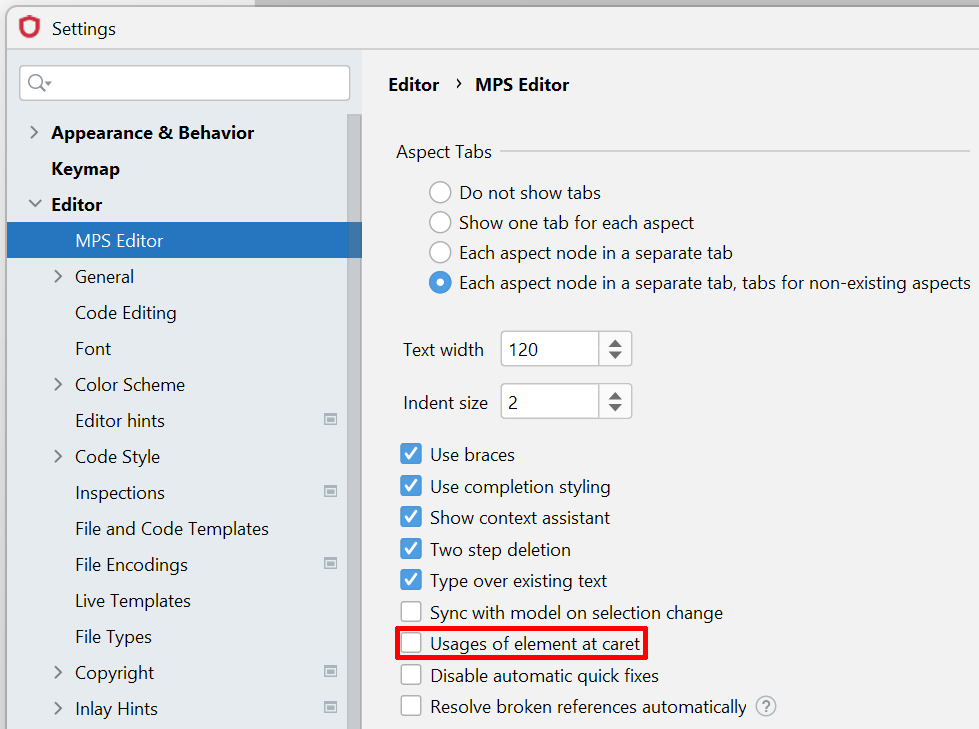
If you prefer the previous behavior, you can re-enable it by toggling File > Settings > Editor > MPS Editor > Usages of element at caret.
Minor UI improvements
In this release, we polished several user interface details to enhance clarity and usability, including:
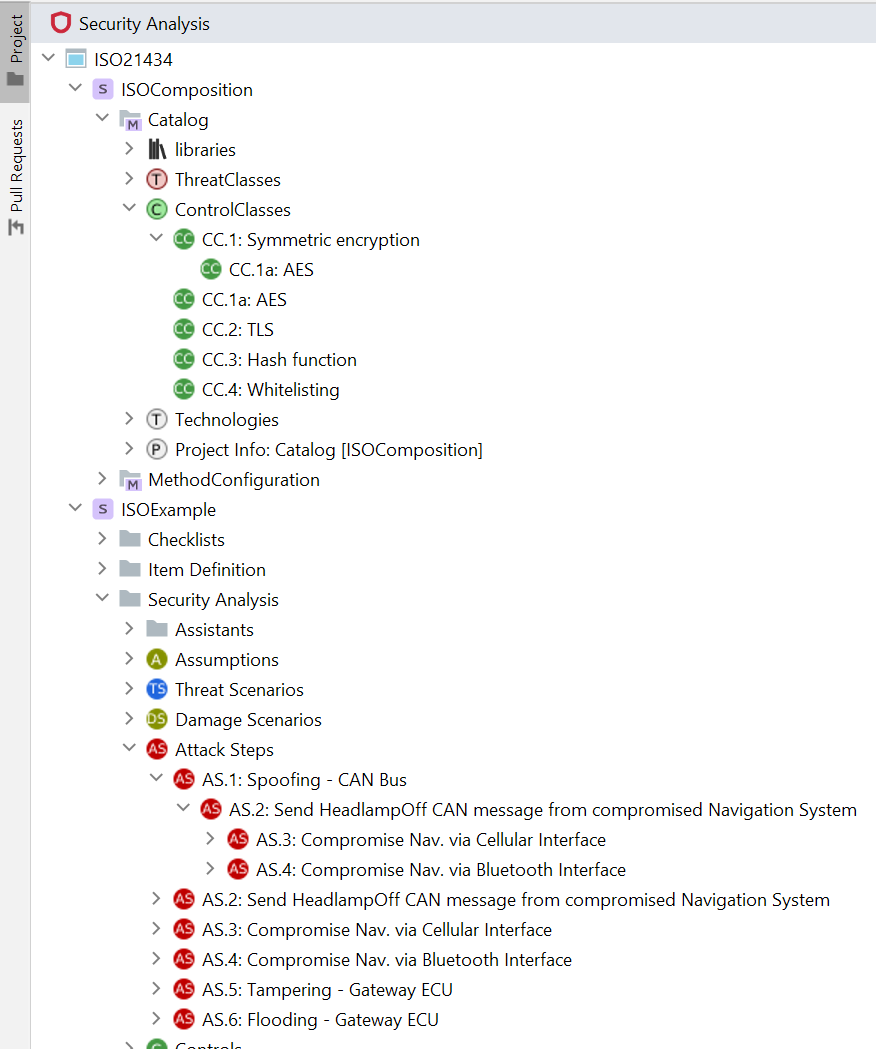
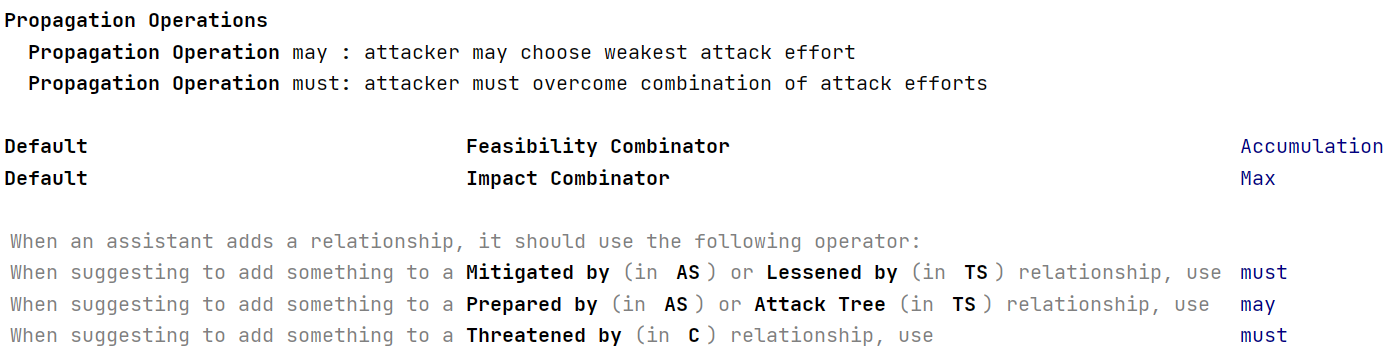
- In the Project View on the left, we added more nodes to make the structure of your models more transparent. For example, you can now expand certain entries to see their child elements — such as viewing Catalog Classes that refine a more abstract Catalog Class, or exploring which Attack Steps are prepared by others.
- To make configuration areas in the Risk Model easier to understand, we added clarifying parentheses in several texts. These now indicate which element types a configured default applies to, helping you better grasp the scope of your settings.
Bug Fixes
Fixed descriptions being semi-editable in references
In certain scenarios — such as when viewing where an element is linked or associated with other items — the description field in the inspector was incorrectly editable. Although it appeared editable, changes wouldn't persist and could cause inconsistent intermediate states.
This has now been fixed. Descriptions in these contexts are properly read-only, preventing confusion and preserving data integrity.
Prevented RCP load-cycles and improved startup performance
In rare cases where a project fails to load, the RCP could previously enter a load-cycle: launching the application would immediately attempt to load the last open project, which would fail, leaving no easy recovery path other than manually editing configuration files.
To prevent this, the RCP now defaults to disabling the automatic project reload feature. On startup, you'll be greeted by the Welcome Screen, where you can reopen previously used projects with a single click. This change ensures you're no longer at risk of locking yourself out of the application due to a corrupted project.
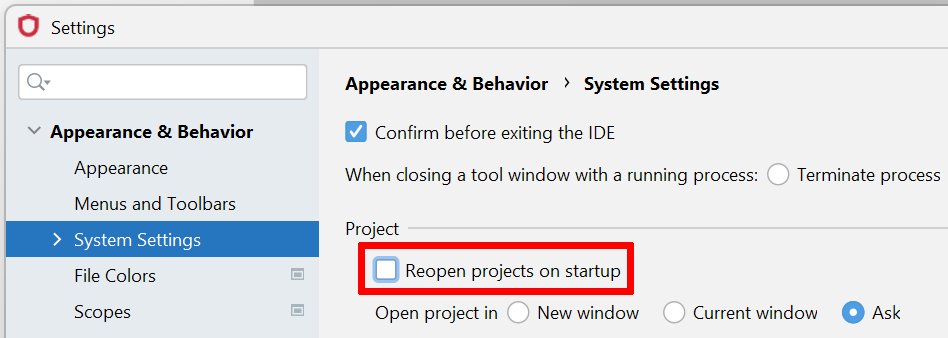
You can still re-enable the previous behavior if preferred, but please note that doing so may reintroduce the risk described above. The setting can be found under Appearance & Behavior > System Settings > Reopen projects on startup.
Fixed solution export not completing
Previously, exporting a project solution to its own file system path would cause the process to hang indefinitely, freezing the UI and requiring a manual termination of the Windows process to recover. This issue has now been resolved — exporting to the solution's own path no longer causes the application to become unresponsive.
That said, exporting directly to the solution's path is still not recommended. To avoid redundant data and maintain proper version control, it's best practice to export to a different location — such as your user directory or the Downloads folder.
Version Mapping
The following table can be used to determine the itemis SECURE version based on the internal plugin version com.moraad.core stored in the .msd file of every solution:
<language slang="l:2bca1aa3-c113-4542-8ac2-2a6a30636981:com.moraad.core" version="<com-moraad-core-version>" />
| com.moraad.core version | itemis SECURE version |
|---|---|
| 94 | 25.1 |
| 93 | 24.3 |
| 92 | 24.2, 24.2.1 |
| 91 | 24.1 |
| 90 | 23.3 |
| 89 | 23.2, 23.2.1 |
| 88 | 23.1.1 |
| 87 | 23.1 |
| 86 | 22.4 |
| 81 | 22.3 |
| 80 | 22.2 |
| 78 | 22.1 |
| 74 | 21.3 |