Manage organizations
Organizations are created and deleted from the list of organizations. Whether SECURE Web App offers this list depends on how your installation is set up. Where it does, you open it with ⋮ next to the organization's name and Organizations, or with Organizations in the avatar menu; see Select an organization. If you do not see it, ask your administrator.
Point to an organization in the list and click ⋮ to open its menu. Members there opens the members page of that organization.
Create an organization
If the list of organizations shows the Create Organization button, you can create an organization:
- Click Create Organization.
- Enter the Organization name. SECURE Web App proposes the short name in the URL field from it; you can change it.
- Click Create Organization.
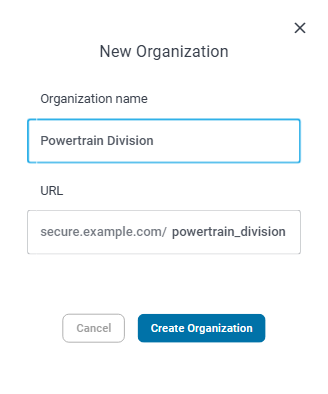
The new organization appears in the list, with you as its Owner and only member. Click it to open it, then invite people to it.
Delete an organization
If you can delete an organization, its menu in the list has Delete.

- Point to the organization, click ⋮ and choose Delete.
- The dialog asks "Are you sure you want to remove the organization?" and names the organization. If you proceed, the organization is permanently deleted; this cannot be undone. Its repositories are no longer available either.
- Click Yes, permanently delete.
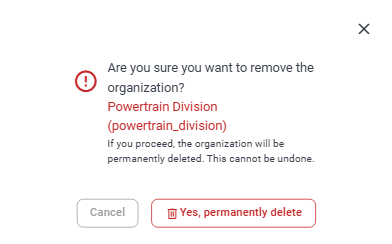
SECURE Web App confirms with "Organization deletion successful" and removes the organization from the list.