Change requests
A change request collects suggested changes to a threat catalog. Those who maintain the catalog review it, and merge it into a new version of the catalog or reject it.
Create a change request
-
Switch on Suggest Changes and make your changes, as described in Threat classes. The number on Create change request counts them.

-
Click Create change request. The dialog lists your changes per threat class.
-
Enter a Change request name and, if you like, a Description, then click Create.
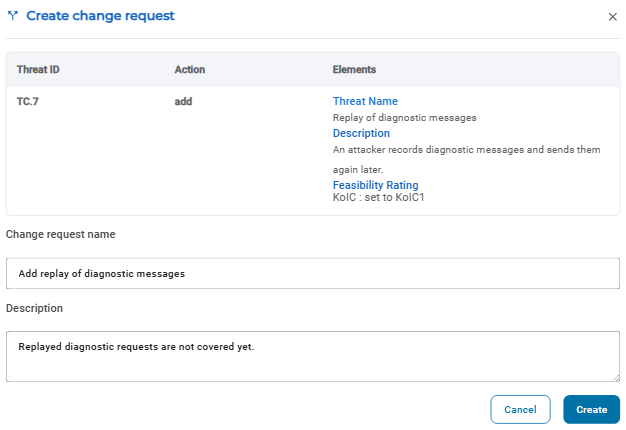
SECURE Web App creates the change request. If you maintain the catalog, it opens the change request and confirms it with The change request has been submitted.
Review a change request
If you maintain the catalog, Change requests at the top of the catalog lists the change requests on the tabs Open, Merged and Rejected. Click a change request to see its details: the catalog version it is based on, its description and every change it contains.
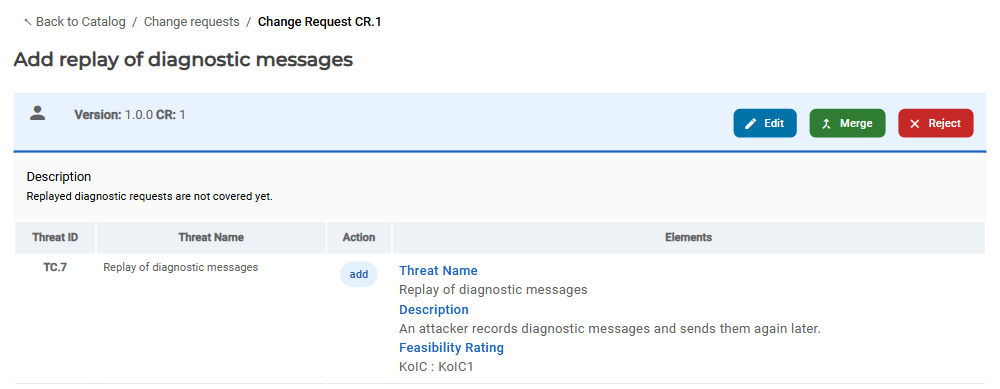
↖ Back to Catalog returns to the catalog.
Change a change request
If you maintain the catalog, you can change a change request:
- Open the change request and click Edit. The catalog opens with the changes of the change request, in Suggest Changes mode.
- Make further changes.
- Click Update change request, check the changes and click Update.
While you look at a change request in the catalog, Change request details at the top takes you back to its details.
Merge or reject a change request
If you maintain the catalog, open the change request from the Open tab.
-
To merge it, click Merge. Under How should we name the new version?, choose how the version number goes up, then click Merge:
- Breaking backwards compatibility, for example from 1.0.0 to 2.0.0
- Adding backwards compatible features, for example to 1.1.0
- Bugfix, for example to 1.0.1
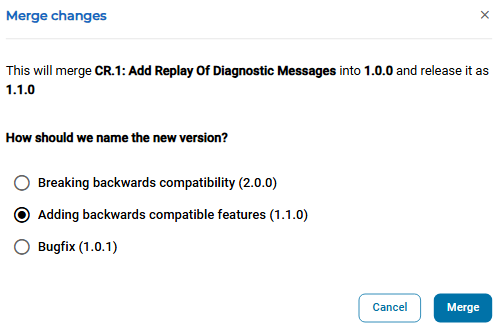
The catalog gets the new version and shows it. TARAs that use the catalog can then be updated to it.
-
To reject it, click Reject and confirm with Reject. The catalog does not change.
Forbidden
If your role does not let you see a page, for example the change requests of a catalog, SECURE Web App shows Forbidden. The link Forbidden to access this page takes you to the repository list of your organization.