Find your way around
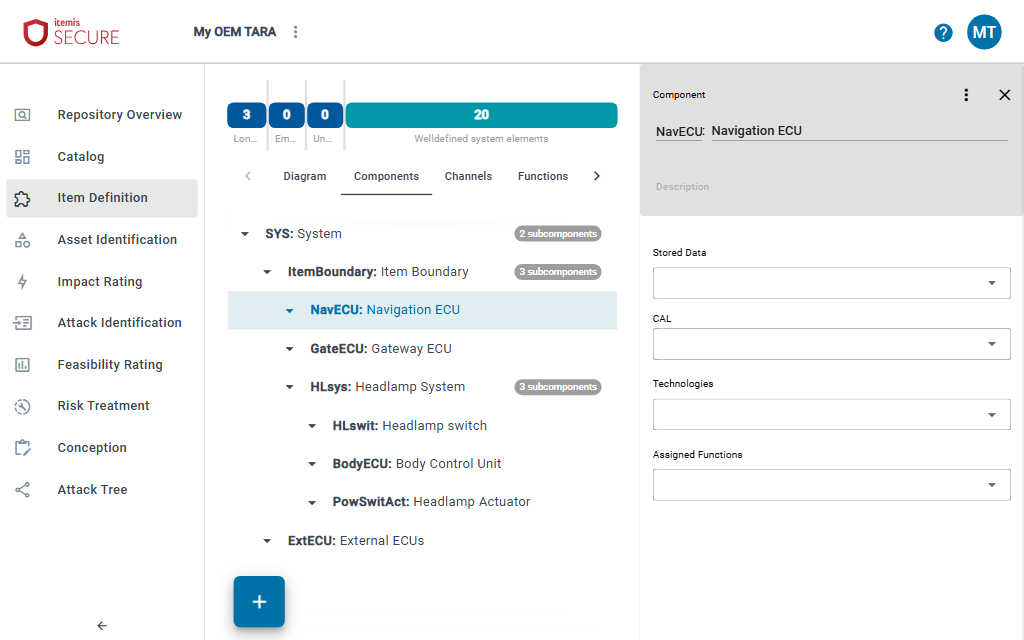
The SECURE Web App window has the same frame on most pages: the app bar at the top and a sidebar on the left. What the sidebar shows depends on where you are: in your organization, or in a repository.
App bar
From left to right:
- itemis SECURE logo: takes you back to the repository list of your organization.
- Repository name and ⋮: shown while a repository is open. The ⋮ button opens the repository menu.
- Last change … by …: when the open repository was last changed, and by whom.
- ?: shown if your installation offers a support portal. It opens a dialog with a link to the user guide and the Open Support Portal button.
- Avatar: the round button with your initials. Its menu shows your name and has the Sign out button (see Sign in and sign out). Depending on how your installation is set up, it also has Organizations.
Organization sidebar
On the repository list and the members page, the sidebar shows the organization you are working in, with its name and its short name (slug) below it.

- ⋮ next to the organization opens the organizations menu, where you can select another organization. Whether ⋮ is shown depends on how your installation is set up; if you do not see it, ask your administrator.
- Repositories lists the repositories of the organization that you have access to.
- Members lists the members of the organization.
The arrow at the bottom of the sidebar collapses it to its icons, and expands it again.
TARA navigation
When you open a TARA, the sidebar lists its areas in the order you usually work through them. The Threat Analysis and Risk Assessment chapter describes each of them.
Pages with several views, such as Item Definition, show them as tabs at the top of the page.
Element column
Click an element, for example a component, to show its details in the element column on the right. The address in your browser then points to this element, so you can send it to a colleague as a link. How to work with elements is described in Work with elements.
Repository menu
The ⋮ button next to the repository name in the app bar opens the repository menu.

- Open in SECURE Desktop: work on the repository in SECURE Desktop.
- Export: download the repository, or get an address other tools can load it from.
- Share: give other people access to this repository.
- Versions: opens the Versions sidebar on the right, which lists the versions of the repository. Only named versions hides the versions that have no name.
Depending on your installation, the menu can have further entries.