Work with SECURE Desktop
SECURE Desktop is optional: you can work with SECURE Web App alone. If you also use SECURE Desktop, you can work on the same TARA in both apps:
- Open a repository in SECURE Desktop: get a copy of a SECURE Web App repository into SECURE Desktop.
- Bring a SECURE Desktop project into SECURE Web App: publish a project you have in SECURE Desktop to a new repository.
In both cases SECURE Desktop needs plugins that keep the project and the repository in sync, and a wizard in SECURE Web App walks you through installing them. If you are unsure whether your SECURE Desktop fits your installation, ask your administrator. How to install SECURE Desktop itself is described in Installation and Getting Started.
Open a repository in SECURE Desktop
-
Open the TARA in SECURE Web App.
-
Click ⋮ next to the repository name in the app bar and choose Open in SECURE Desktop.
-
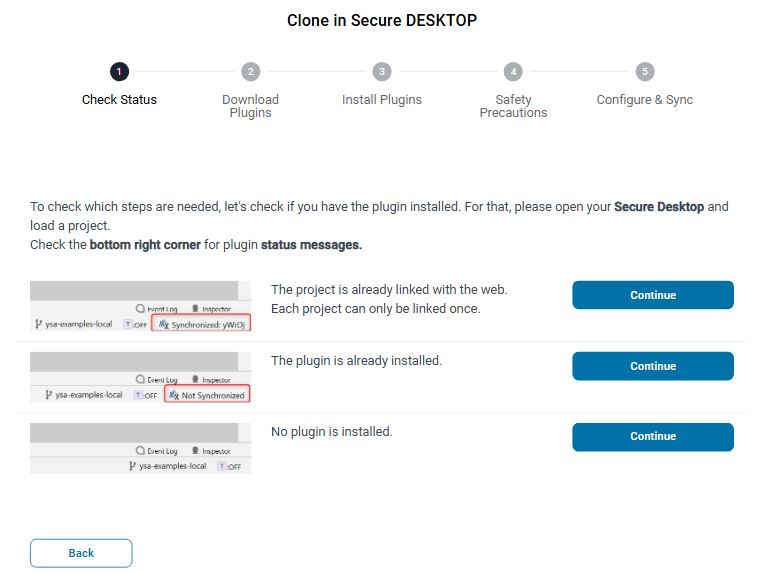
The wizard opens; its title reads "Clone in Secure DESKTOP". It has the steps Check Status, Download Plugins, Install Plugins, Safety Precautions and Configure & Sync. Click Next.
-
Check Status: open SECURE Desktop, load a project, and look at the status messages in the bottom right corner of SECURE Desktop. The wizard shows three cases, each with a Continue button:
- "The project is already linked with the web." or "The plugin is already installed.": Continue takes you to Safety Precautions.
- "No plugin is installed.": Continue takes you to Download Plugins.
-
Download Plugins and Install Plugins: install the plugins in SECURE Desktop as the wizard shows, then restart SECURE Desktop. A new element in its status bar then shows the sync status.
-
Safety Precautions: read the notes before you go on. The wizard calls working on the same TARA in both apps a pilot phase and asks you to back up your data. It also tells you to stop using Git for the project, since the versions are kept on the server, and warns that undo and redo affect the last action of any user, that editing the same field at the same time can get SECURE Desktop out of sync, and that long offline work makes conflicts more likely.
-
Configure & Sync: the wizard tells you what to do in SECURE Desktop:
- Open the New -> Project wizard.
- Select Security Analysis from Web and enter a name and location.
- Copy the configuration from the Configuration Text field of SECURE Web App and paste it into SECURE Desktop.
- If the status bar shows a yellow indicator, click it to sign in; a browser tab guides you through it.
SECURE Desktop then downloads the data, and the status bar shows that the project is synchronized. Click Done.
Bring a SECURE Desktop project into SECURE Web App
First create an empty repository for the project, then publish the project to it from SECURE Desktop.
- Open the repository list of the organization and click New repository (see Create a repository).
- Select the tab From Desktop. The dialog says "Creating the repository is the first step – we'll walk you through uploading your data next."
- Enter the Repository Name, check the URL and the Type, and click Create Repository.
The new repository stays empty until data arrives from SECURE Desktop. While it is empty, opening it shows the wizard Get this repository ready.
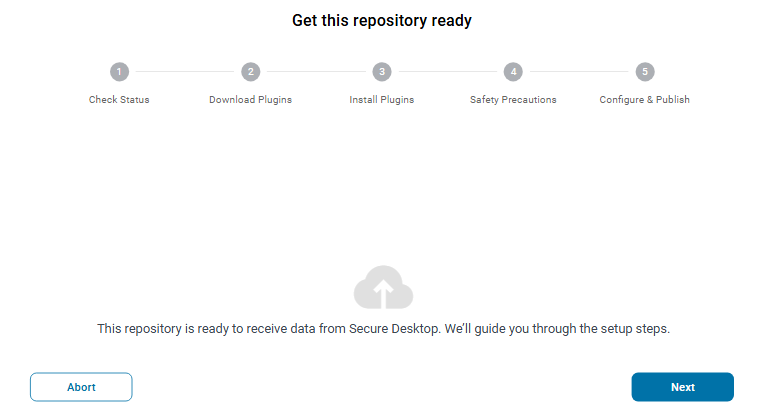
Its first four steps are the same as for opening a repository in SECURE Desktop, with one difference at Check Status: a project that is already linked with the web cannot be published again, and the wizard asks you to select another project. The last step is Configure & Publish:
- With the project loaded in SECURE Desktop, right-click the project in the project structure and select Publish Local Project to SECURE Web.
- Copy the configuration from the Configuration Text field of SECURE Web App and paste it into SECURE Desktop.
- If the status bar shows a yellow indicator, click it to sign in.
SECURE Desktop then uploads the data. The wizard closes once the data has been uploaded.
Abort takes you back to the repository list. The repository stays empty, and the wizard opens again the next time you open it.