Item definition
In the Item Definition area you describe the item the TARA is about: its components, the channels and data flows between them, its functions, and its data. What these elements mean is explained in Item Definition.
The area has the tabs Diagram, Components, Channels, Functions, Data and Function Assignment. Function assignment has a page of its own.
Above the tabs, the progress bar of the item definition counts the elements by category. Click a segment to go to the elements it counts.
On the tabs Components, Channels, Functions and Data, Search by name or title shows only the elements whose name or title contains the text you type.
How to add, edit and delete elements is described in Work with elements.
Diagram
Diagram draws the item: components as boxes, with their sub-components inside, and channels as small ovals connecting the components they link.
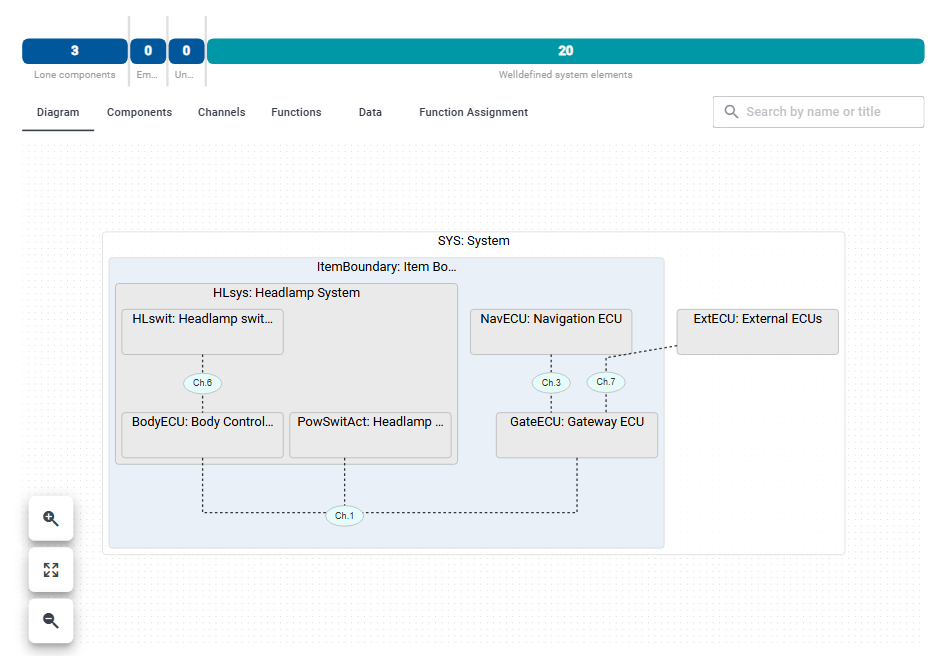
- Click a component or a channel to open it in the element column. It is highlighted in the diagram. Click it again to close the column.
- Drag an empty part of the diagram to move the view.
- The buttons at the bottom left, Zoom in, Fit to screen and Zoom out, zoom in, fit the whole diagram into the view, and zoom out.
The diagram is for viewing. To change the item, use the other tabs; the diagram shows the changes.
If the diagram cannot be drawn, for example because a channel is missing an endpoint, the tab says The diagram could not be rendered. This may be caused by incomplete model data such as channels with missing endpoints. and lists the elements that could not be drawn. Correct them on the other tabs.
Components
Components shows the components as a tree: each component with its sub-components below it. A badge shows how many sub-components a component has. The arrow in front of a component folds its sub-components in and out.
+ adds a component. If a component is selected, the new one becomes its sub-component; otherwise it is added at the top level.
The element column of a component has Stored Data, CAL, Technologies and Assigned Functions.
Channels
Channels lists the channels, each with its data flows below it. A data
flow without a title of its own is shown with the data it transfers, its
source and target, and its technologies in brackets, for example
OnMsg, OffMsg: BodyECU → PowSwitAct [-].
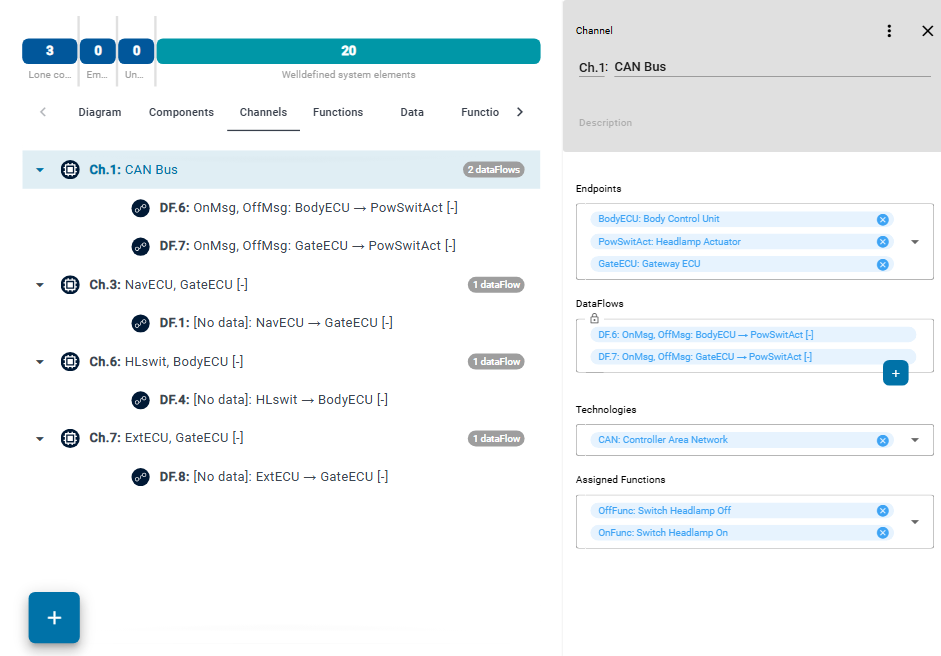
+ adds a channel if nothing is selected. If a channel is selected, it adds a data flow to that channel.
- The element column of a channel has Endpoints, the components the channel connects, as well as DataFlows, Technologies and Assigned Functions.
- The element column of a data flow has Source Ref and Target Ref, as well as Transferred Data, Technologies and Assigned Functions. For Source Ref and Target Ref you can choose any component. One that is not yet an endpoint of the channel is added to its Endpoints.
Technologies come from the catalog, see Technologies.
Functions
Functions shows the functions of the item as a tree, with their sub-functions below them. + adds a function. If a function is selected, the new one becomes its sub-function.
The element column of a function has Assigned to elements: the components, channels, data flows and data that implement it.
Data
Data lists the data of the item in a table with Name and Title. + adds data. The element column of data has Assigned Functions.
Where data is stored and transferred is set on the components and data flows, with Stored Data and Transferred Data.