Work with elements
A TARA consists of elements: components, channels, functions and data, damage scenarios, threat scenarios, attack steps, risks and more. Most areas of the TARA navigation list the elements they are about, in a table, a tree or a matrix. You work with the elements the same way in every area.
SECURE Web App saves every change right away; there is no save button.
Open an element
Click an element in an area to open it in the element column on the right.
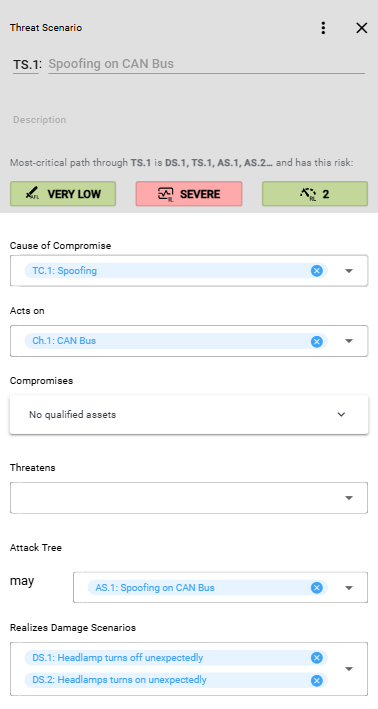
- The header shows the kind of element, its name and title, and its description.
- Below the header, the column shows the element's properties. Most of them are reference boxes, which list the elements this element refers to.
- Click an element in a reference box to open it in a further column to the right. Click it again to close that column and any columns to its right.
- × at the top right closes the column.
The address in your browser points to the open elements, so you can send it to a colleague as a link.
Add an element
If you can edit the repository, the round + button at the bottom left of the list adds an element:
- Click +. SECURE Web App adds an element, gives it a name, for example
Cmp.1for a component, and opens it in the element column. - Click the title field and type a title. For elements without a derived title, such as components, the field already has the focus.
- Fill in the description and the properties you need.
Some areas add the element below the one you have selected, for example a sub-component below a component. The pages of the areas describe this.
Edit an element
- Name and title: click them in the header of the element column and type. Some elements derive their title from their properties; the derived title is shown in gray until you type your own. See Derived Titles.
- Description: click the description field below the title and type.
- Reference boxes: click the box to open the list of elements you can refer to, and click one to add it. Type into the search field at the top of the list to find an element by name or title. × next to an element removes the reference; the element itself is kept.
For some kinds of elements, a reference box can also create the element you refer to. Type a title into the search field and click + Create New … : …. SECURE Web App creates the element with this title, adds it to the box and opens it in a further column.

Element menu
⋮ in the header of the element column opens the element menu.

- Show in Risk view: opens the element in Risk Treatment. Offered for damage scenarios, threat scenarios and risks.
- Show External IDs: shows the IDs this element has in other tools, each with a namespace and an identifier. Hide External IDs returns to the properties.
- Delete: deletes the element, see below. Offered only if you can edit the repository.
Delete an element
- Open the element and click ⋮ → Delete.
- SECURE Web App asks Are you sure you want to delete …? Click Delete.
The element is removed from the TARA and its column closes.
Risk values
Elements that take part in the risk calculation, such as damage scenarios, threat scenarios and risks, show three values in the header of their column:
- AFL, the attack feasibility level, for example VERY LOW.
- IL, the impact level, for example SEVERE.
- RL, the risk level, for example 2.
The text above them names the most critical attack path through the element, which these values belong to. If no attack along the paths is possible, the text says so.
Point at a value to see how it was calculated: the formula, the levels of the method configuration, and the elements of the path.
SECURE Web App calculates the values as described in Propagation. The levels come from the method configuration of the TARA, see Catalog.
When you can only view a TARA
If your role allows you to view a TARA but not to change it, SECURE Web App says so at the top of the page:

You can open elements and follow their references, but there is no + button and the fields cannot be changed. The ⋮ menu is offered only for damage scenarios, threat scenarios and risks, without Delete.
When part of a page cannot be shown
If an element cannot be shown, for example because the TARA contains incomplete data such as missing references, the element column says This part of the page could not be shown. This may be caused by incomplete model data such as missing references. Close the column with Close and continue with other elements.
If a whole area or tab cannot be shown, it shows the same message with Try again.