Browse and view versions
Open the Versions sidebar from the repository menu: ⋮ next to the repository name, then Versions.
The list of versions
Each card in the list is one version, newest first. It shows the date and time of the version and the people who made its changes. A number such as +1 shows that the version contains more than one change.
While someone is still changing the TARA, the newest card says how many recent changes there are. It turns into a version once about a minute has passed without further changes.
- The sidebar loads the 15 newest versions first. Below the list, it says how many versions are loaded. Load More loads further ones; when the whole history is there, the sidebar says All in front of the number.
- Only named versions lists every version that has a name, from the whole history, so there is nothing more to load. Below the list, the sidebar says how many named versions there are. If no version has a name yet, the sidebar says so; Show All Versions shows the whole list again. See Name a version.
See what changed
- Move the mouse over a version.
- Click Show changes (not offered for the very first version).
The card opens and lists the changes of this version compared to the version listed below it. With Only named versions, that is the previous named version, so the list includes every change made in between. The oldest named version has no named version below it; its list covers only changes from its own card. Each line names the element and what happened to it, for example that it was added, removed or that one of its fields was set to a new value. Hide changes closes the list again.
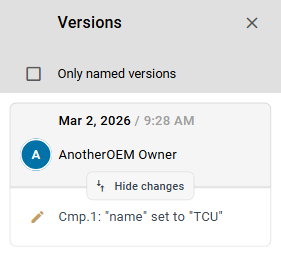
Look at a past version
Click a version in the list. SECURE Web App shows the TARA as it was at that version, and you can move through all its pages as usual. The selected version is highlighted in the list, and the address in your browser points to it.
A past version is read-only. A banner at the top of the page says View-only mode: This is a previous version (…).
To return to the current state of the TARA, click Back to current version in the banner.
To make a past version the current state again, see Revert to a version.